Types of AI Assistant Conversations
Conversations with AI assistants typically fall into two categories: Transactional and Informational. Transactional:These conversations are structured, goal-oriented, and designed to complete specific tasks. They guide users through predefined processes—such as booking a flight, checking an account balance, or filing a support ticket—where every input and response is precisely managed to ensure a successful transaction. Informational:
These conversations are designed to answer questions and provide insights. Whether users are inquiring about product features, technical details, or pricing, these dialogues rely on current data and strong contextual understanding to deliver clear, relevant answers. Real conversations often mix both types - a user might start booking a flight (transactional) but then ask about baggage policies (informational) before completing their booking.
Understanding RAG
To enable building assistants that can handle different conversational usecases, Rasa enables you to integrate Retrieval-Augmented Generation (RAG) into your assistants. RAG is a method that leverages LLMs to produce more accurate and up-to-date responses by providing them access to external knowledge sources. RAG involves three steps:- Retrieval: When a user asks a question, we search through a knowledge base (documents, databases, or other structured information) to find relevant information.
- Augmentation: The retrieved information is combined with the user’s query and conversation context to create a comprehensive prompt.
- Generation: This enriched prompt is sent to an LLM which generates a response that incorporates the retrieved information.
How RAG Works in Rasa
Rasa enables assistants to handle informational dialogue at any point in the conversation. When a user asks an informational question, Rasa’s Dialogue Understanding component will produce aSearchAndReply command.
This command triggers the search pattern, which processes the knowledge query and then returns back to the ongoing conversation.
📌 Pro tip: You can also trigger enterprise search at specific points in a conversation by adding it as a step in your flow.
Getting Started with Enterprise Search
Step One: Prep your Knowledge Base
Rasa offers flexible options for configuring your knowledge base when setting up Retrieval-Augmented Generation (RAG). You can choose from two primary storage methods:Folder-Based Storage
For a quick and simple setup, you can store text documents in your project’s/docs folder. This approach is ideal for rapid development and prototyping, as it provides an easy-to-use source of information for the LLM to generate responses.
Vector Database
For a production-ready solution, consider connecting to a vector database like Qdrant or Milvus. This method supports dynamic updates and enables sharing your knowledge base among multiple assistants.- Pro
- Studio
Note: In this example, we use the simple folder-based storage approach to demonstrate how to prepare your knowledge base, configure Enterprise Search, and override the search flow. This is a quickstart approach using Pro.
docs/sampleDocument.txt
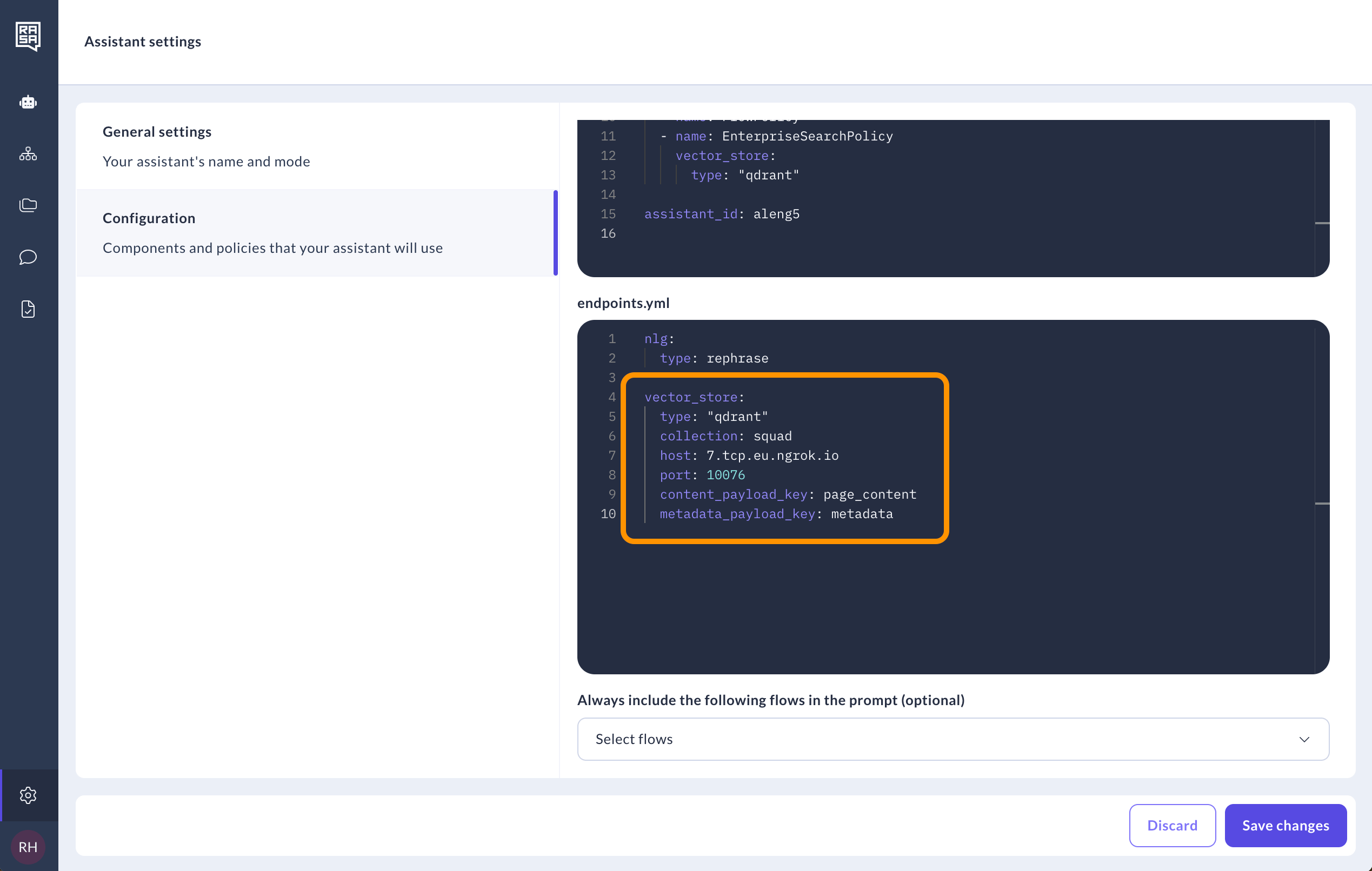
Step Two: Configure the Command Generator and Enterprise Search
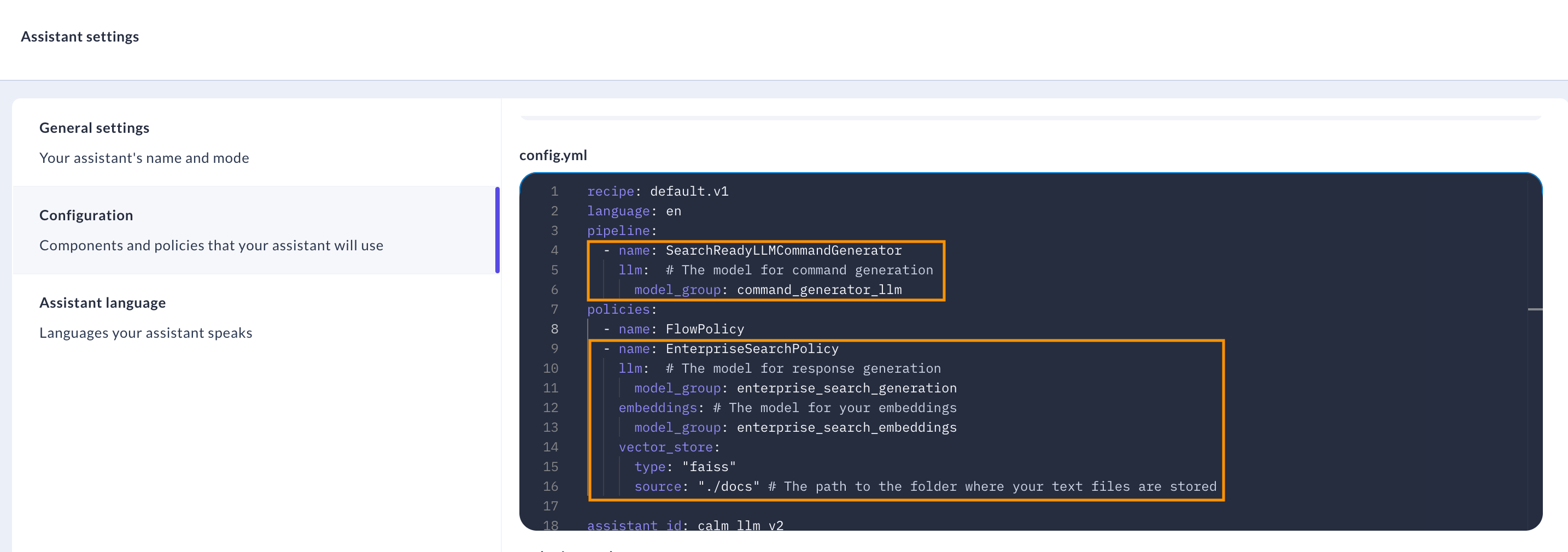
Include the correct command generator (SearchReadyLLMCommandGenerator) in your assistant’s configuration -
- Pro
- Studio
config.yml
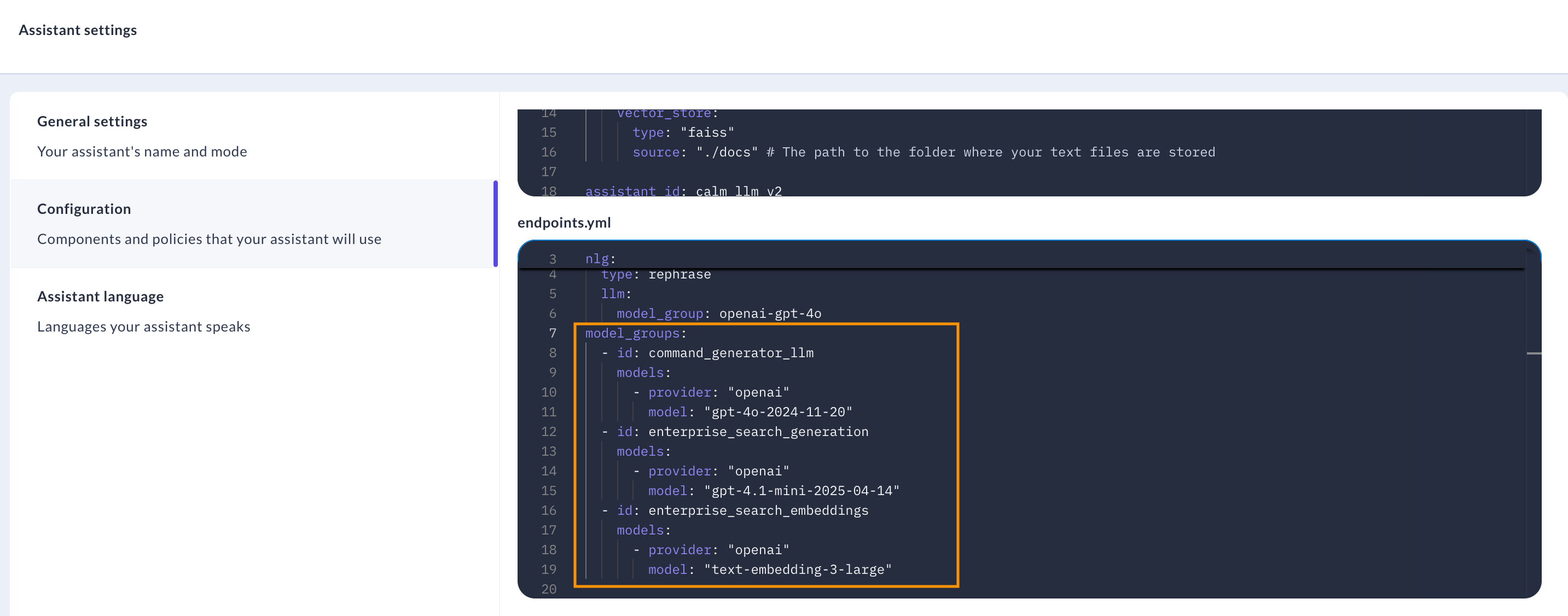
endpoints.yml
Step Three: Override pattern_search
- Pro
- Studio
Modify
flows.yml by adding a new system flow called pattern_search to trigger document search for knowledge-based questions:flows.yml
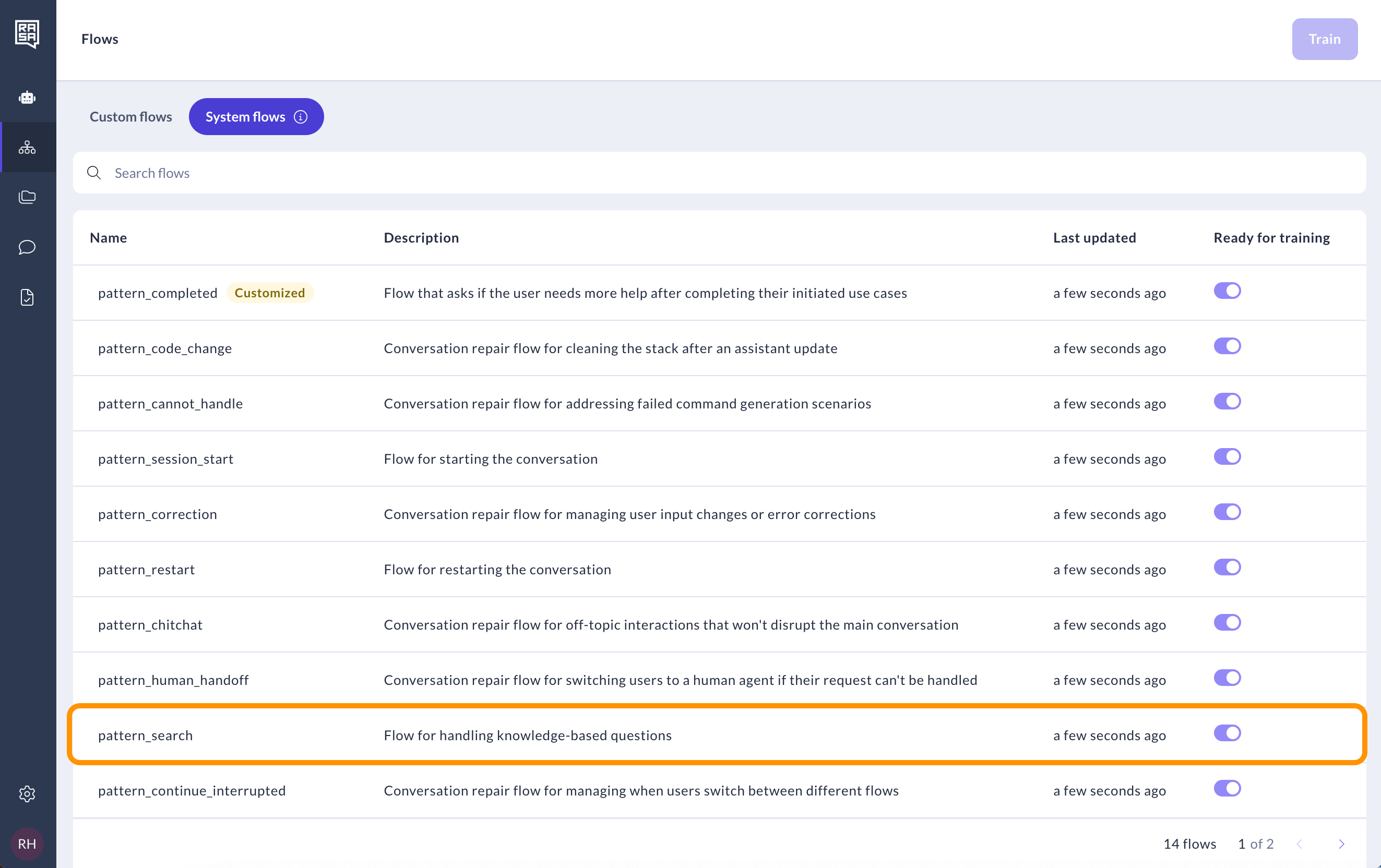
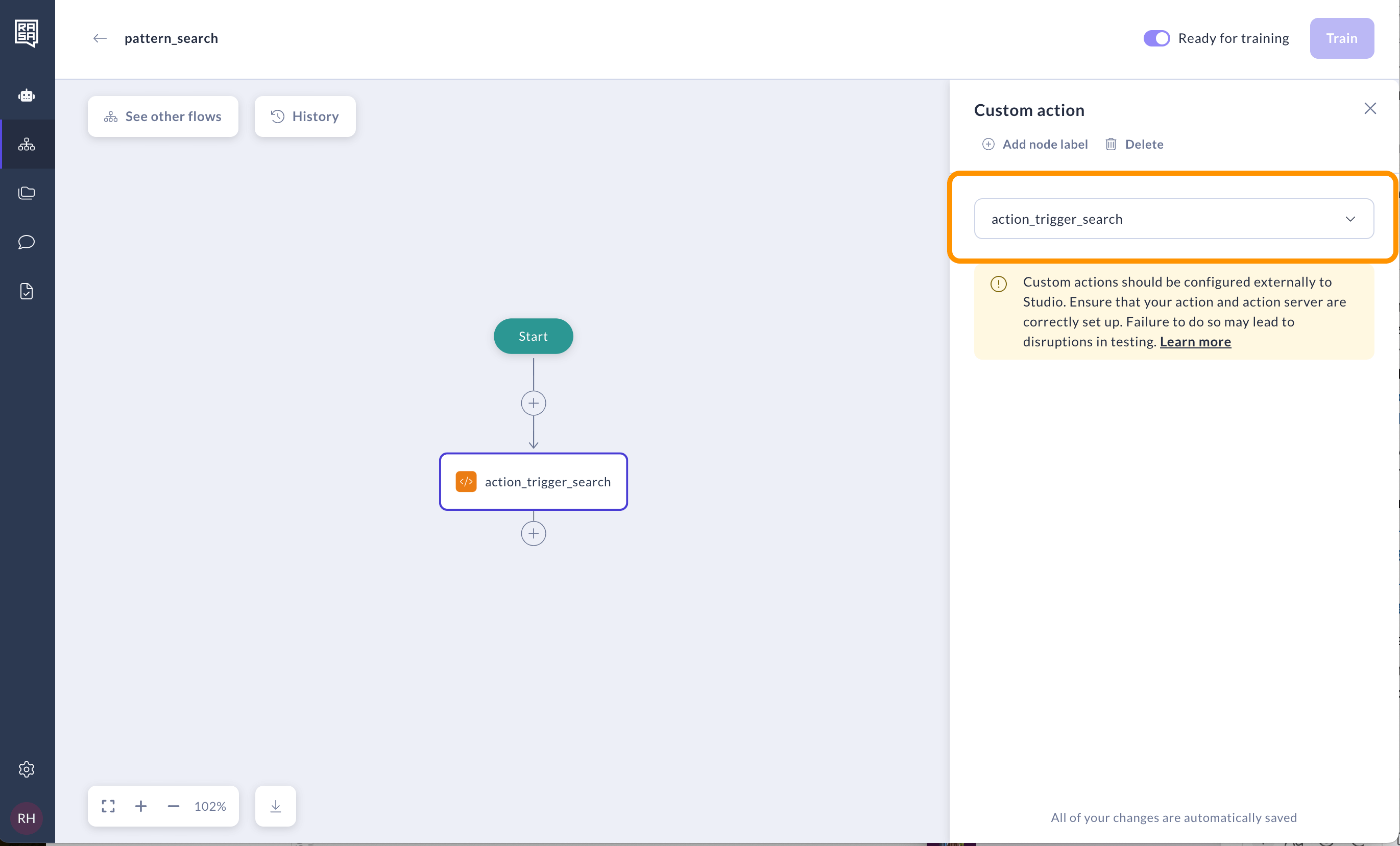
action_trigger_search.
Step Four: Try out your assistant
Once you have indexed your documents and trained your assistant, you should be ready to try out your new informational conversation!