Buttons and Links
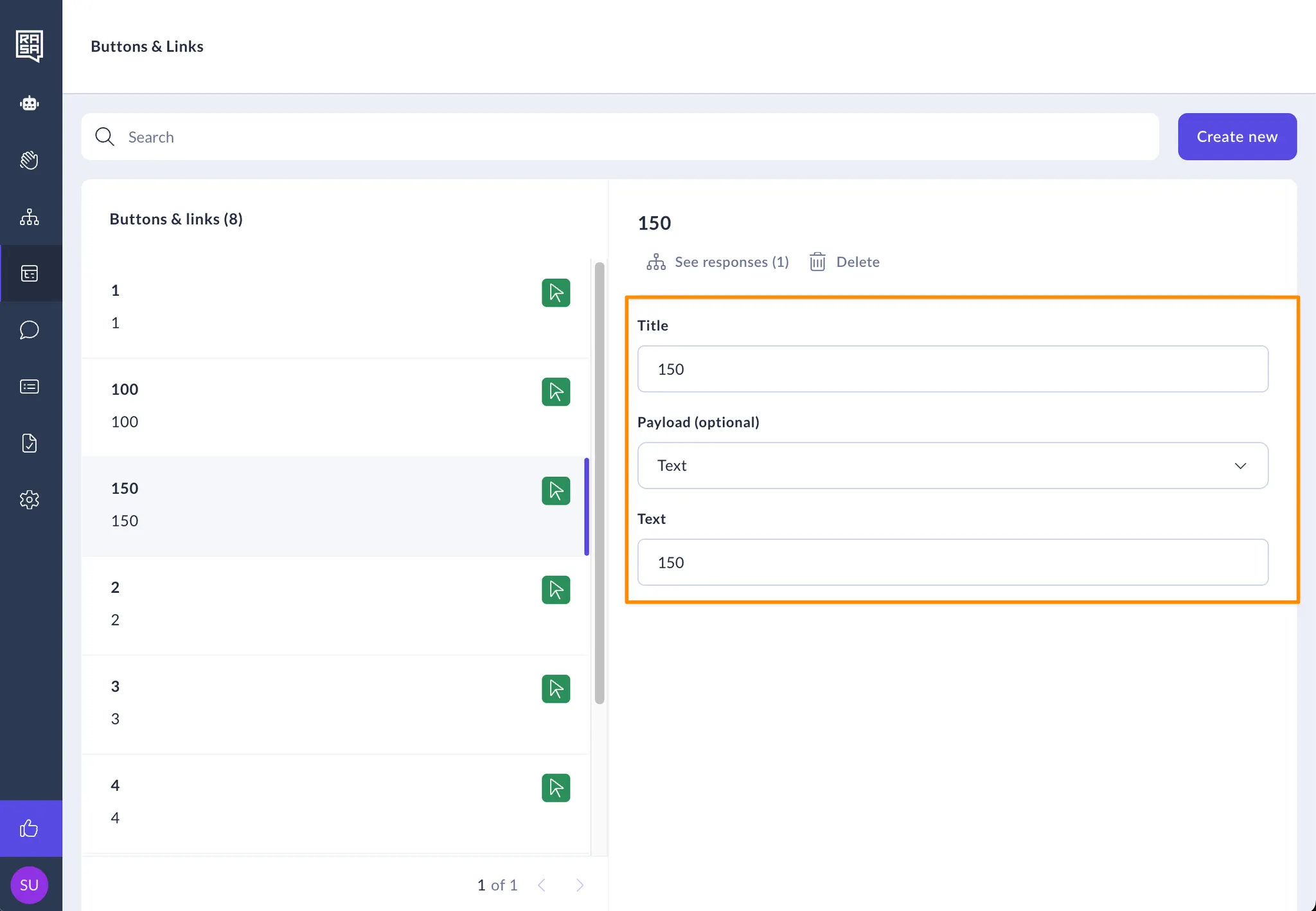
The buttons and links section of the CMS is a centralised place for content managers and flow builders to create and manage all the buttons and links used in an assistant.
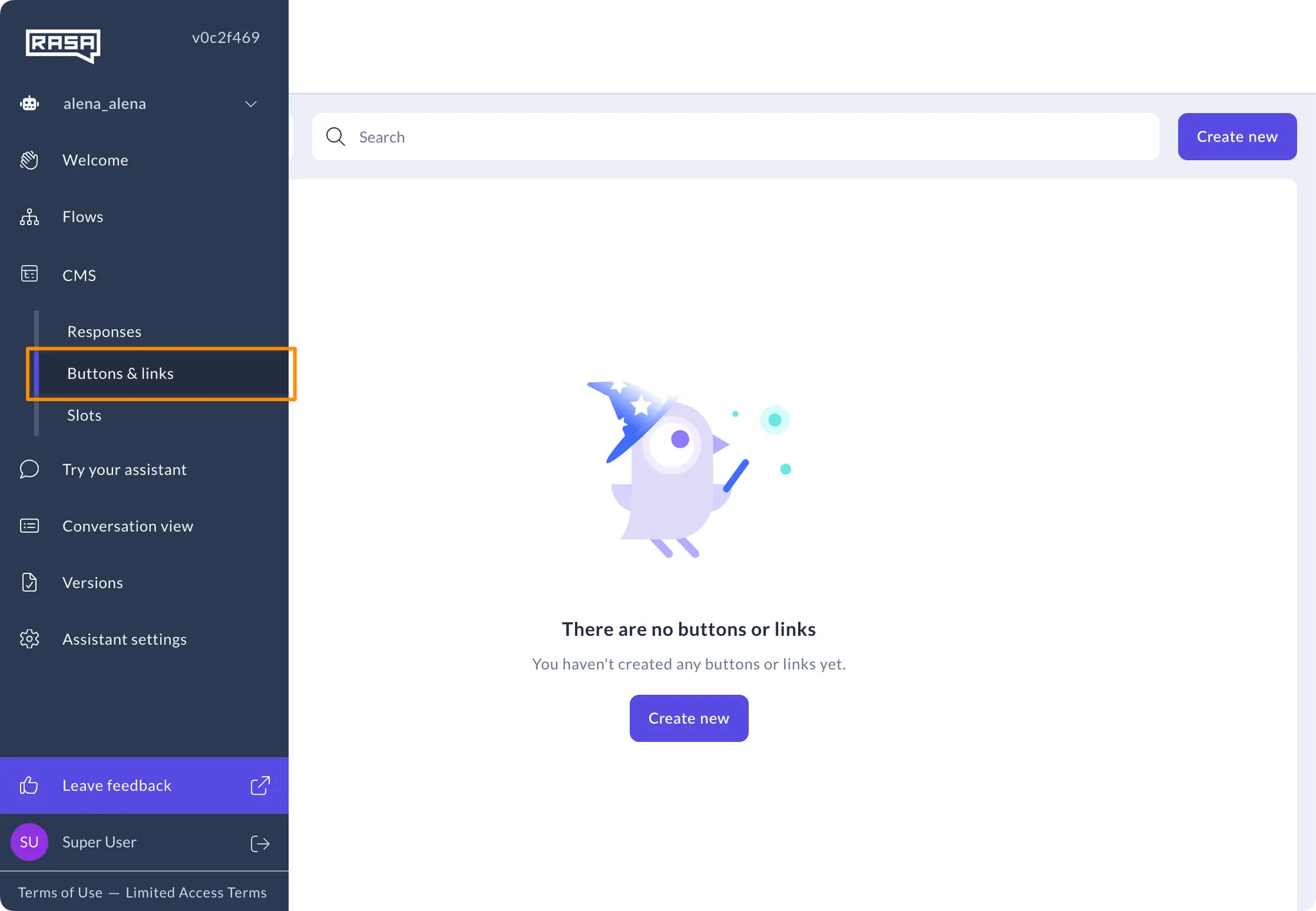
Access from Buttons and Links navigation item under CMS on the navigation menu.
How to Create a Button
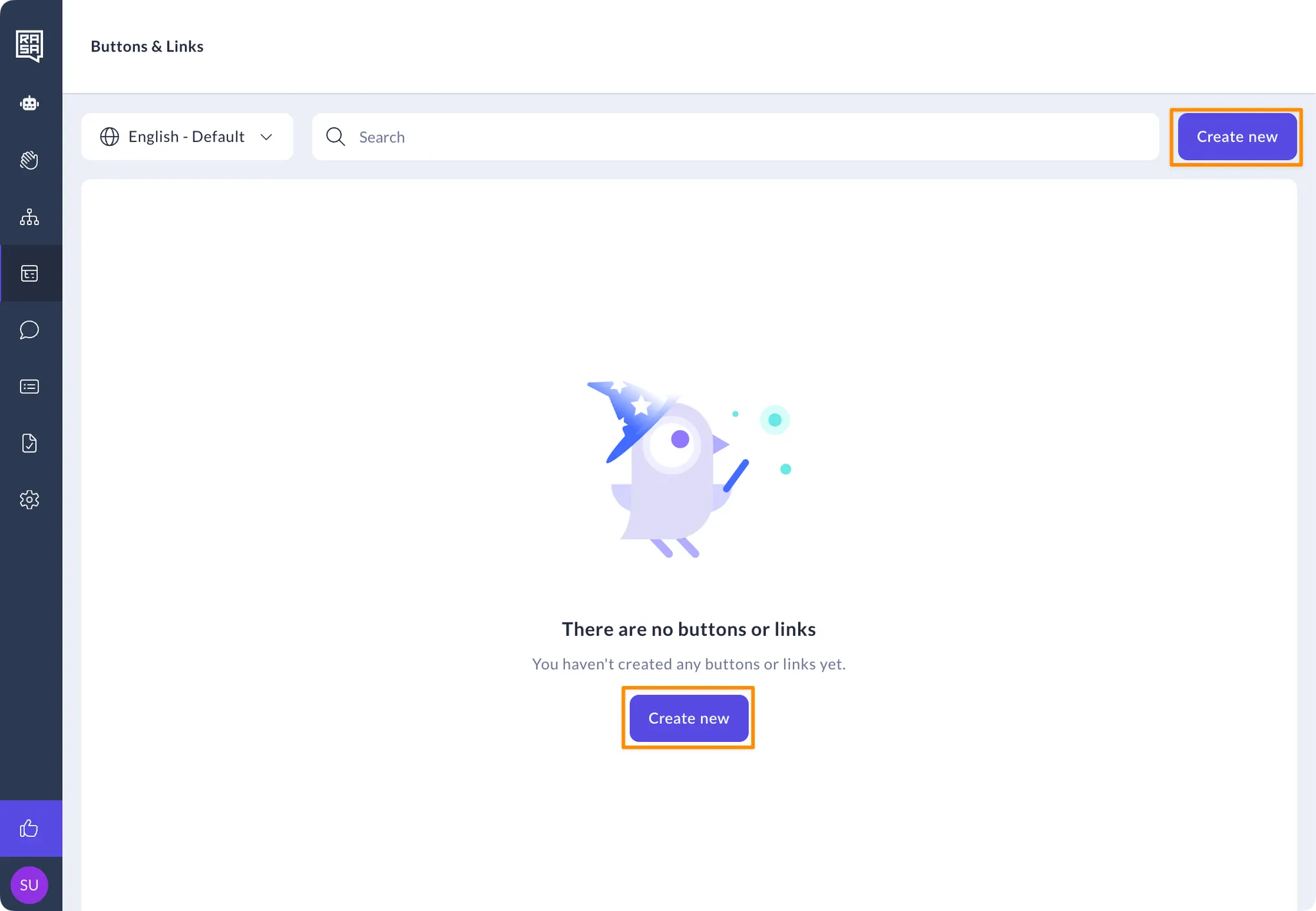
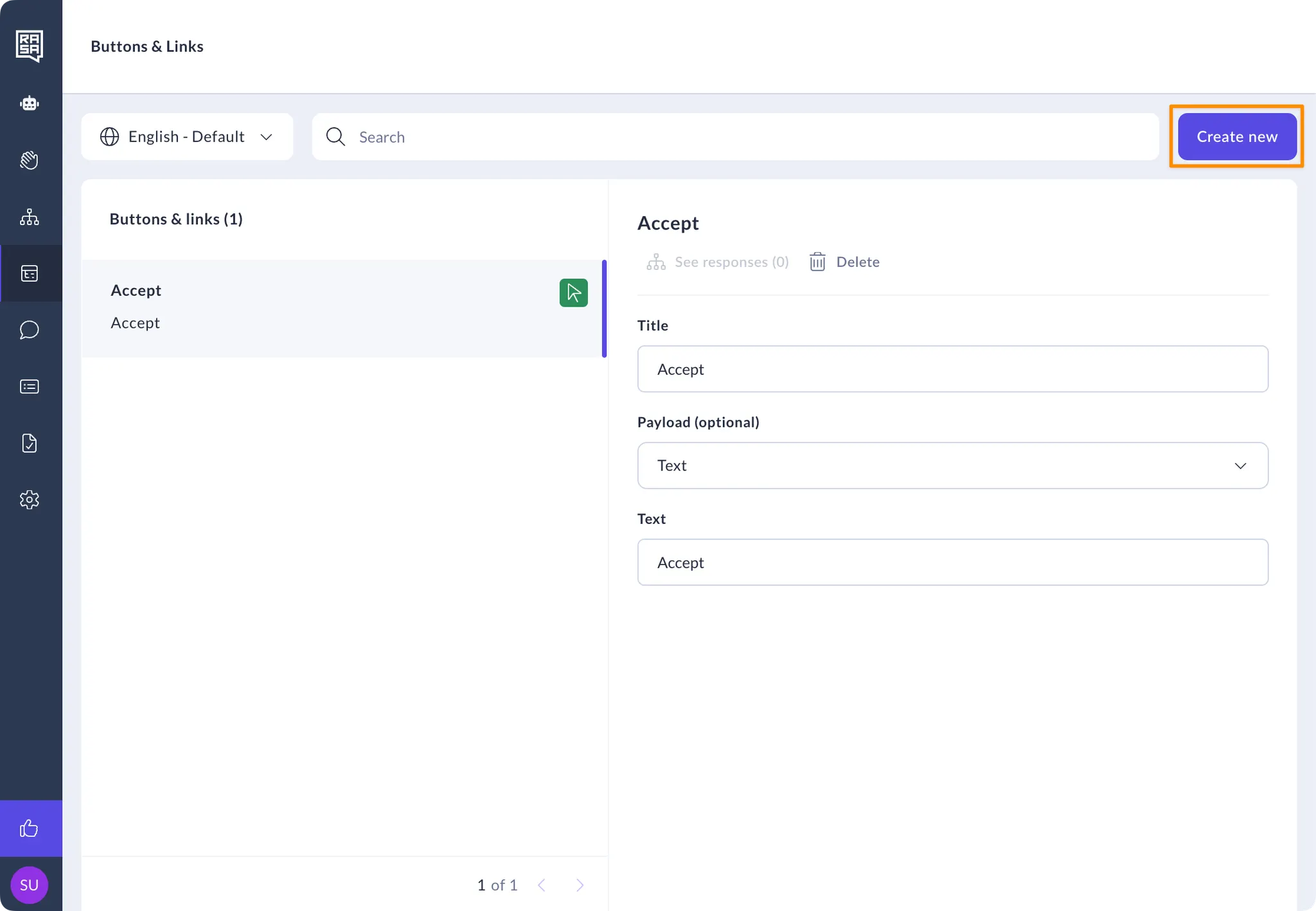
- Click on the “Create new” button on the top right of the screen, or on the middle of the screen if no buttons or links exist yet.
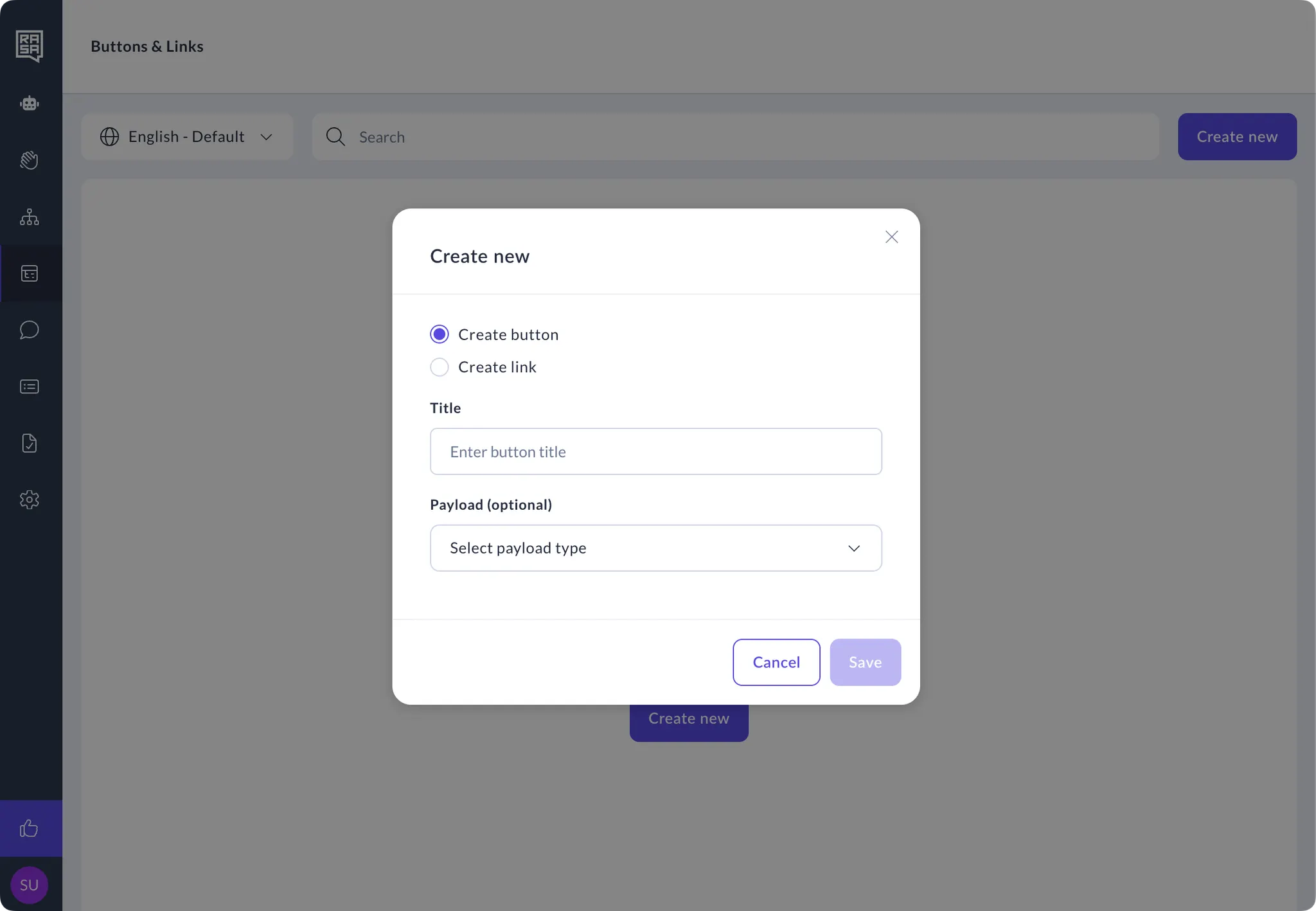
- Type in a name and select the button payload type, and then click the save button.
How to Create a Link
- Click on the “Create new” button on the top right of the screen.
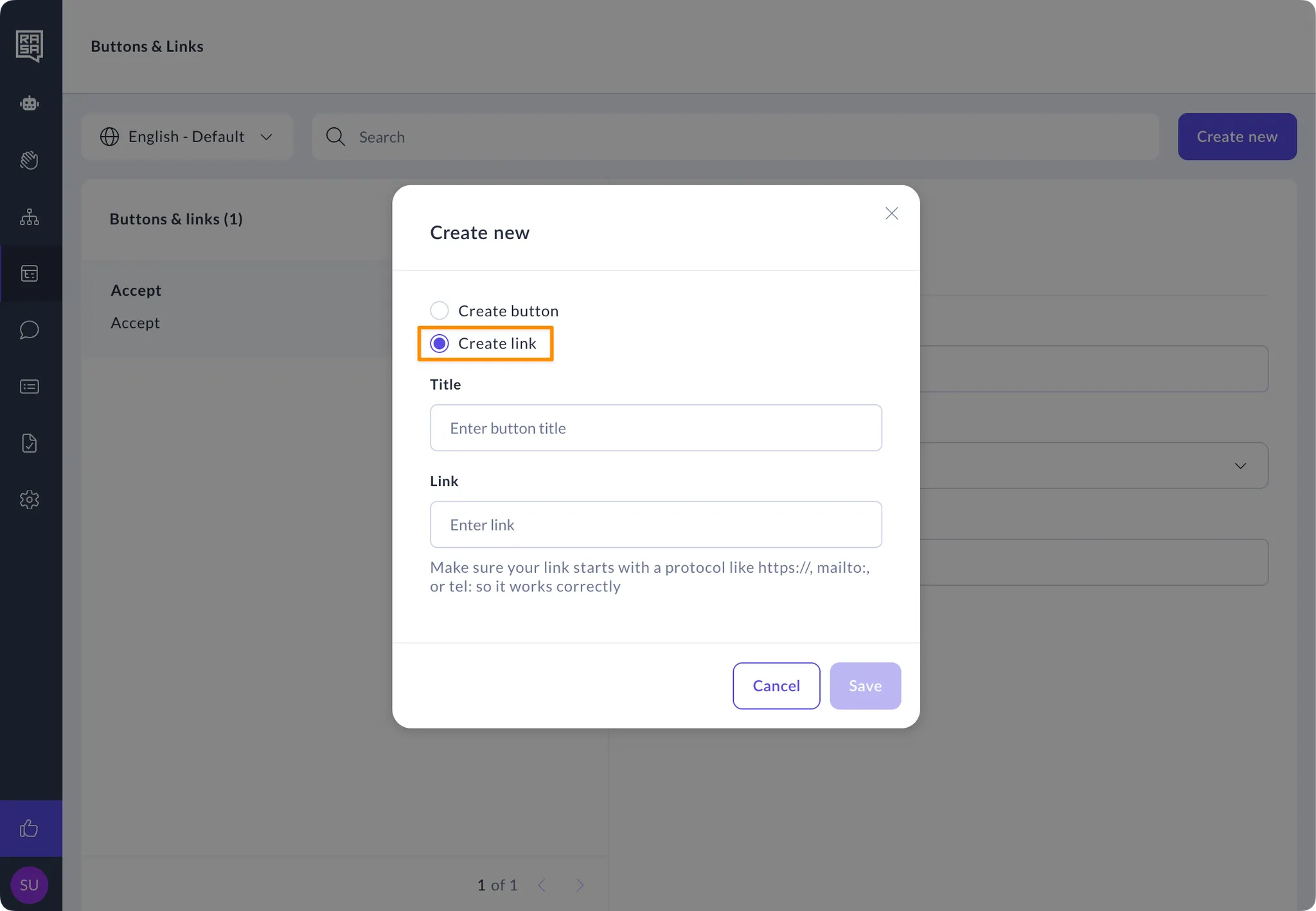
- Click the “Create link” radio button, and then type in the link title, fill in the link URL and click the save button.
How to Manage Buttons and Links
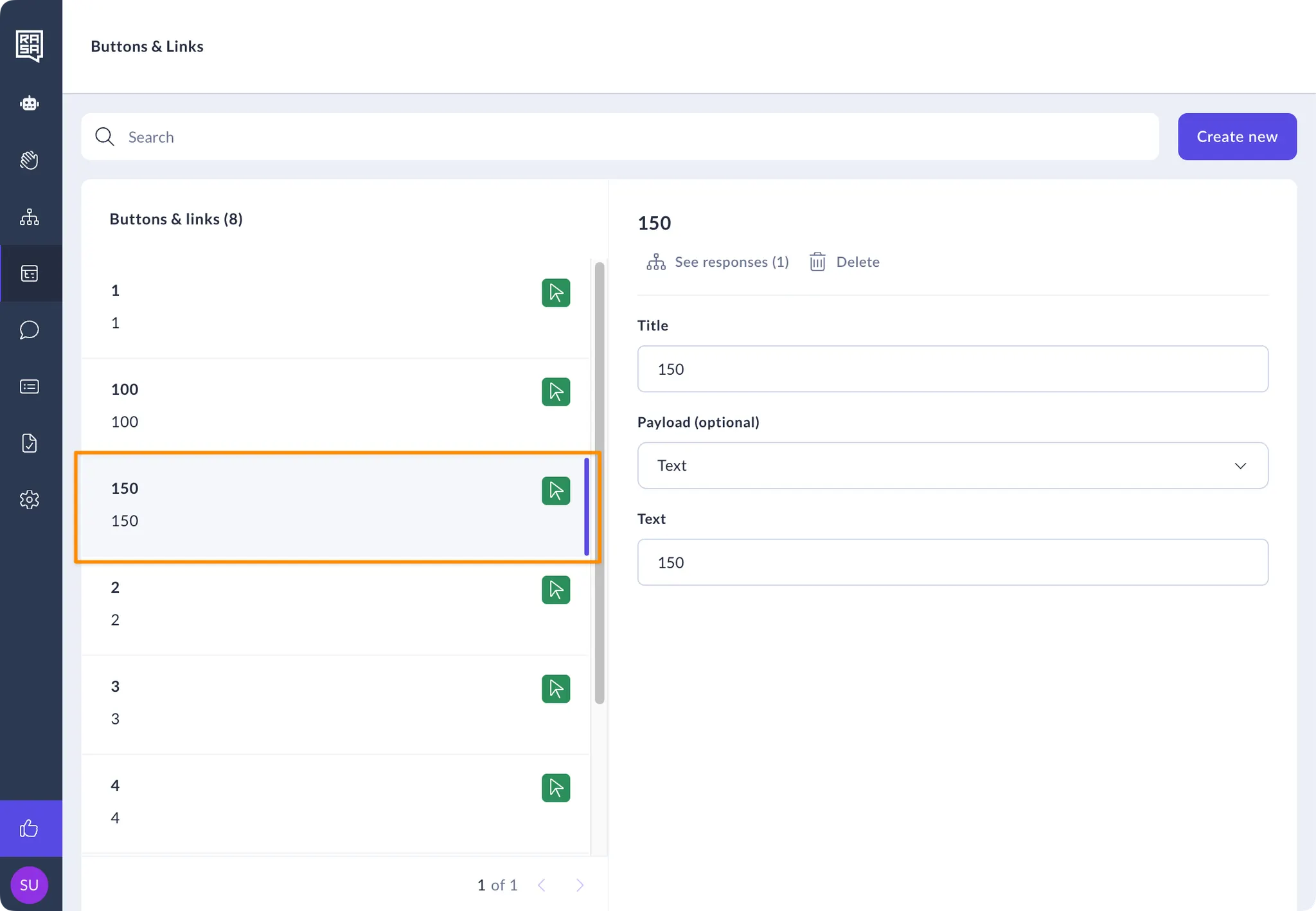
- Select the button or link from the list on the left
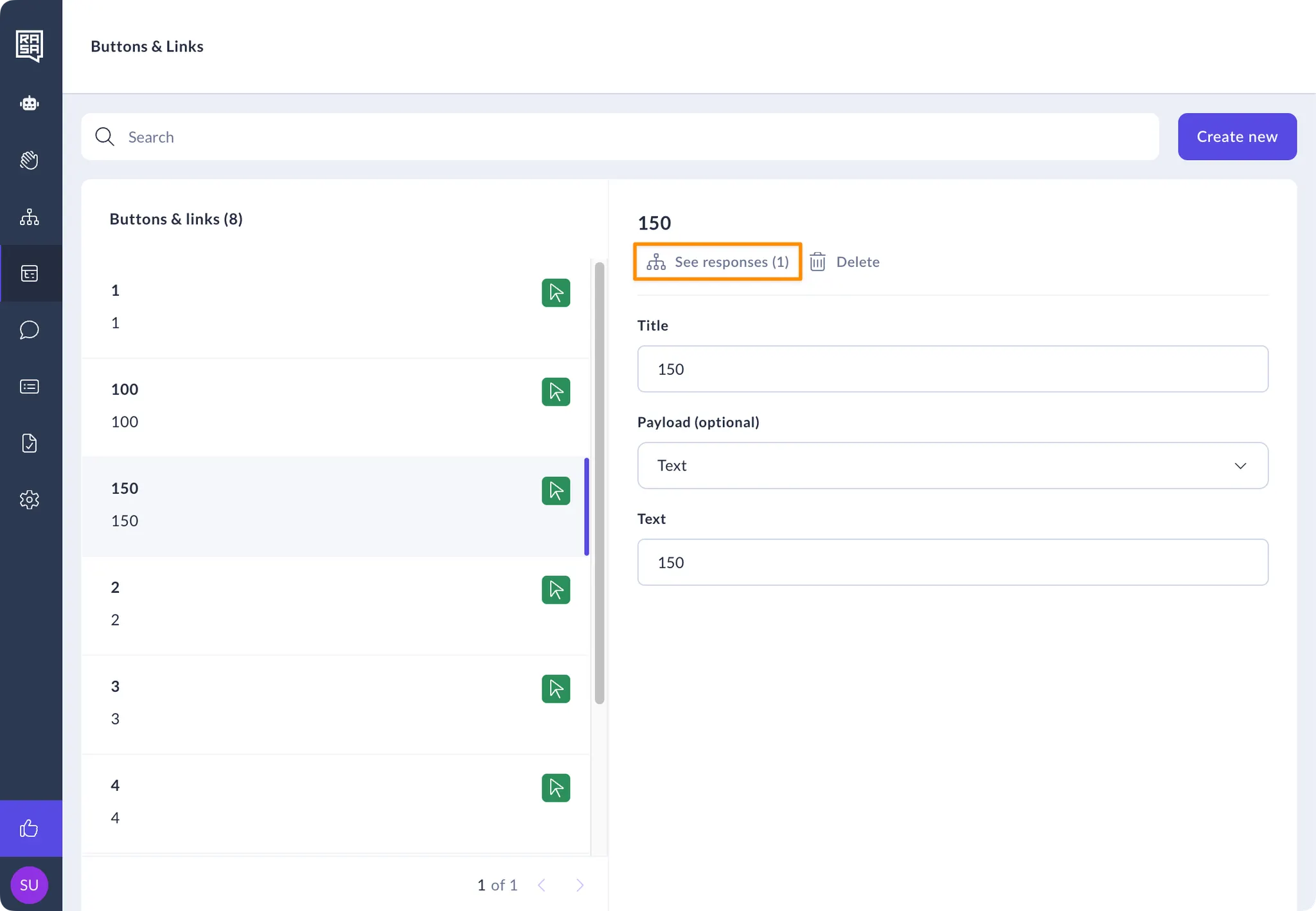
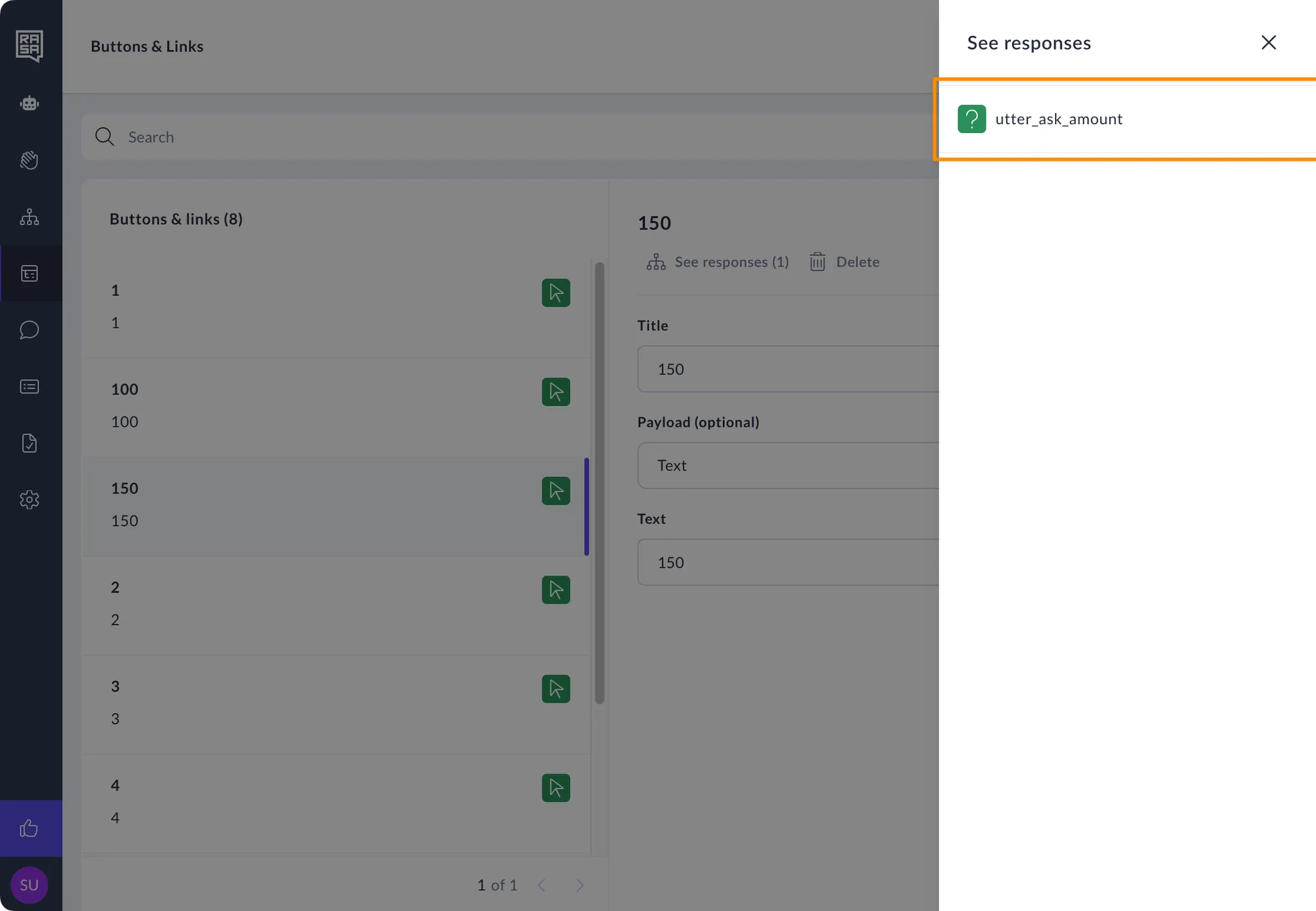
- Click the “See responses” button to view which responses are using this button or link. You can also click on the response name to navigate to it on the Response CMS.
- Click the “Delete” button to delete the button from the assistant.
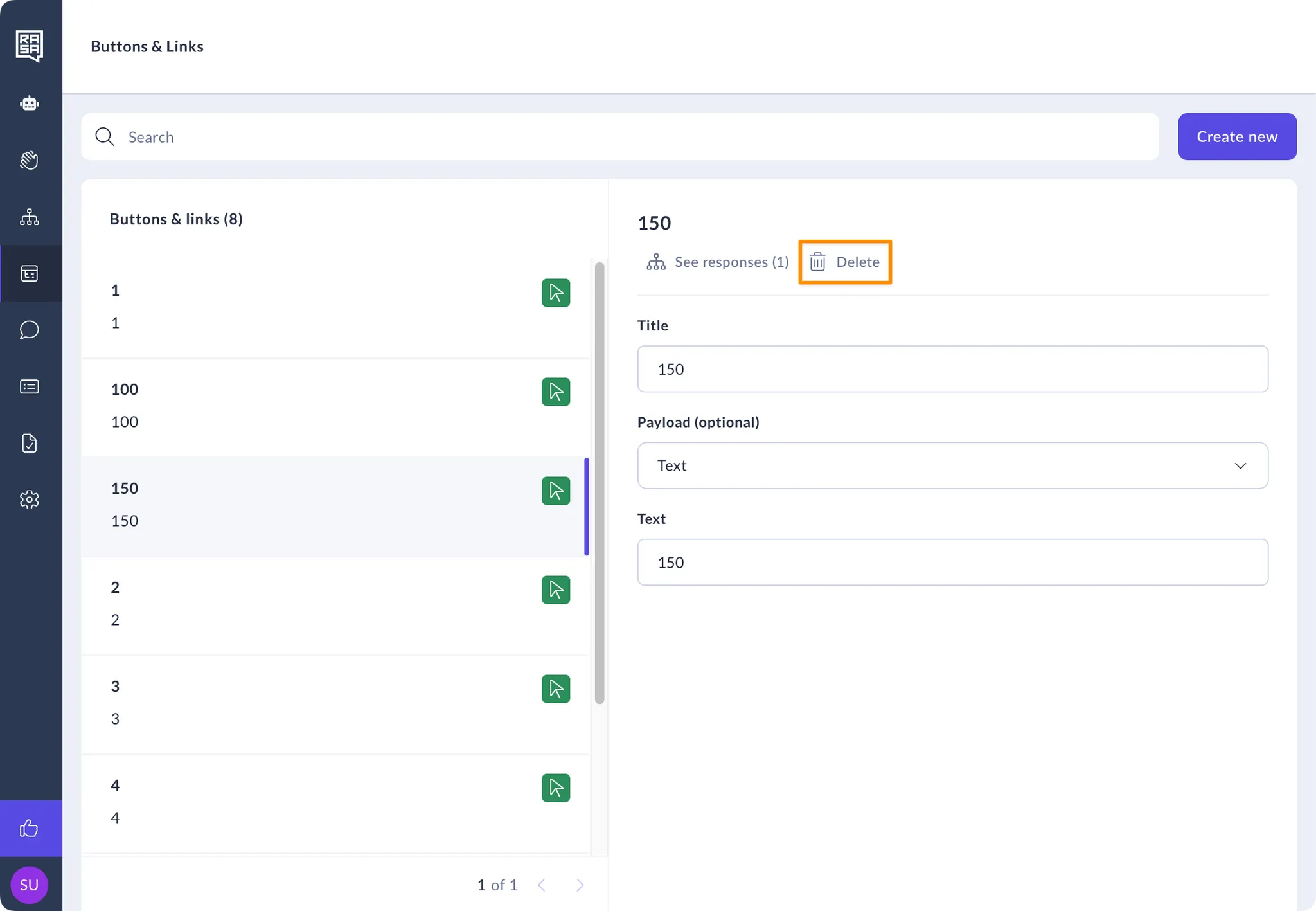
- Change any button or link values or types using the fields on the page.