Configure Rasa assistant for Conversation ReviewIn order for Studio to display conversation data, you need to configure your Rasa assistant to send conversation data to Studio via a Kafka broker. Make sure that your assistant and Studio are both connected to same Kafka instance and are listening to the same topic. You can review the technical reference on the event broker here to know more about Kafka configuration in Rasa Pro.
Make sure the that
assistant_id field in the config.yml of your Rasa assistant is set to the same value as the assistant name in Studio.Getting started
Choose an assistant from the dropdown menu in the left navigation bar.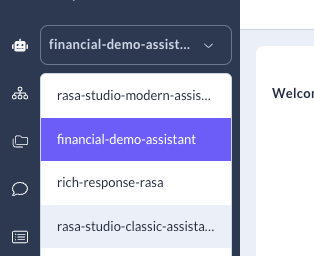
Conversations Table
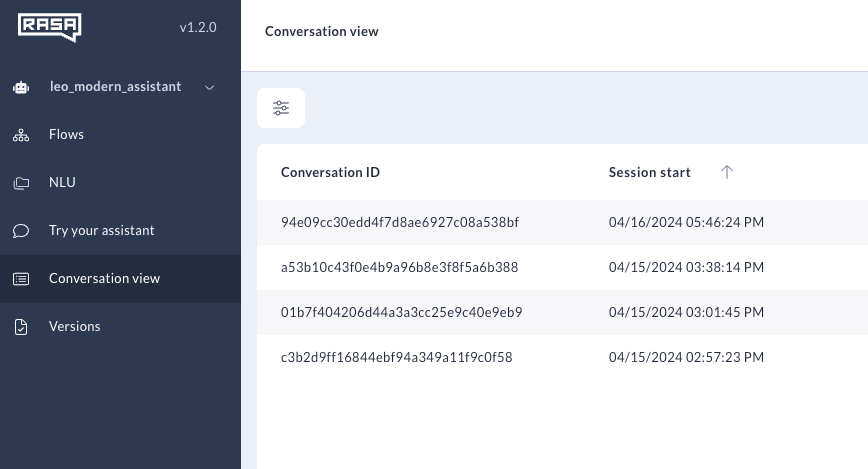
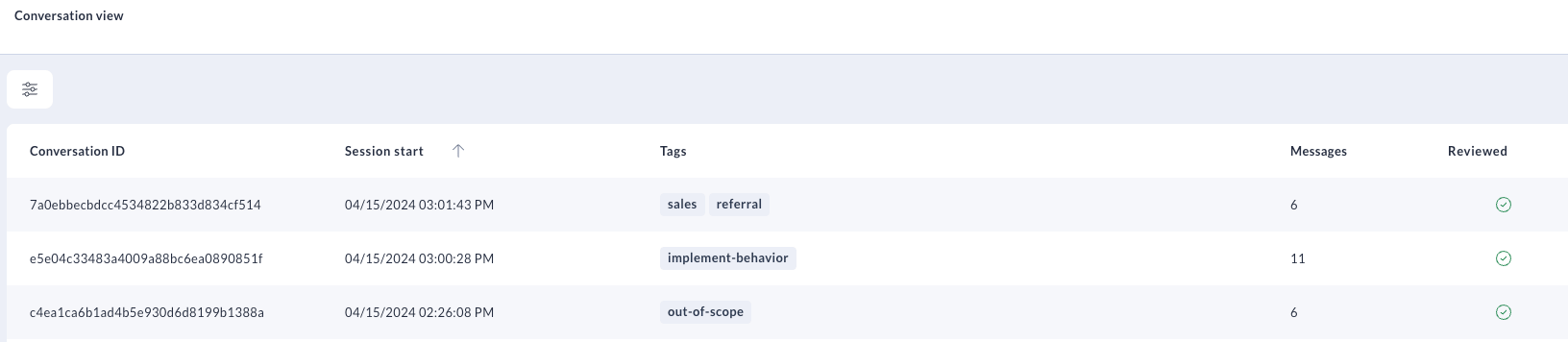
The Conversations Table lists all conversations your assistant has had with your users, including those that are still in progress. Conversations appear as soon as the first message is received — you do not need to wait for a session to end. By default, the table shows the 100 most recent conversations from the last seven days, sorted by descending start time. The Conversations Table has the following columns:Filters
Applying filters to the Conversations Table helps you quickly identify conversations that need analysis. To access filters, click the Filters icon in the top left corner of the Conversations Table.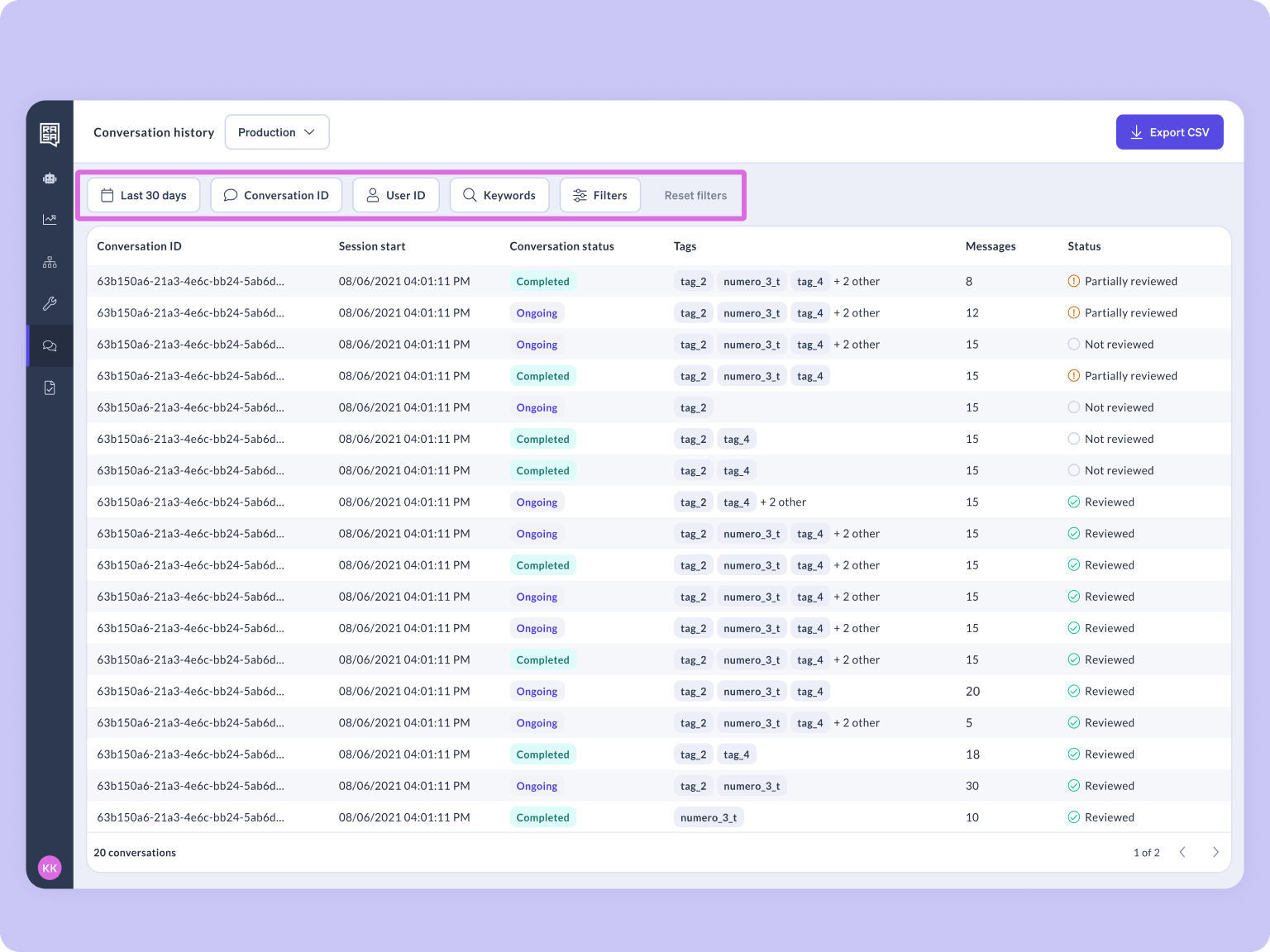
Exporting Conversations
You can export the conversations currently visible in the table to a CSV file. The export applies the same filters you have set, so only the matching conversations are included. To export, click the Export CSV button above the Conversations Table. The button is disabled when more than 1,000 conversations match your current filters, or when no conversations are visible. A tooltip explains the reason when the button is unavailable. The exported file contains one row per event, grouped by conversation. Each conversation includes user messages, bot responses, slot changes, and flow events.Conversation Details Panel
The Details panel shows session, user and event data that will help you with conversation evaluation. The panel shows the following session-level data for every conversation: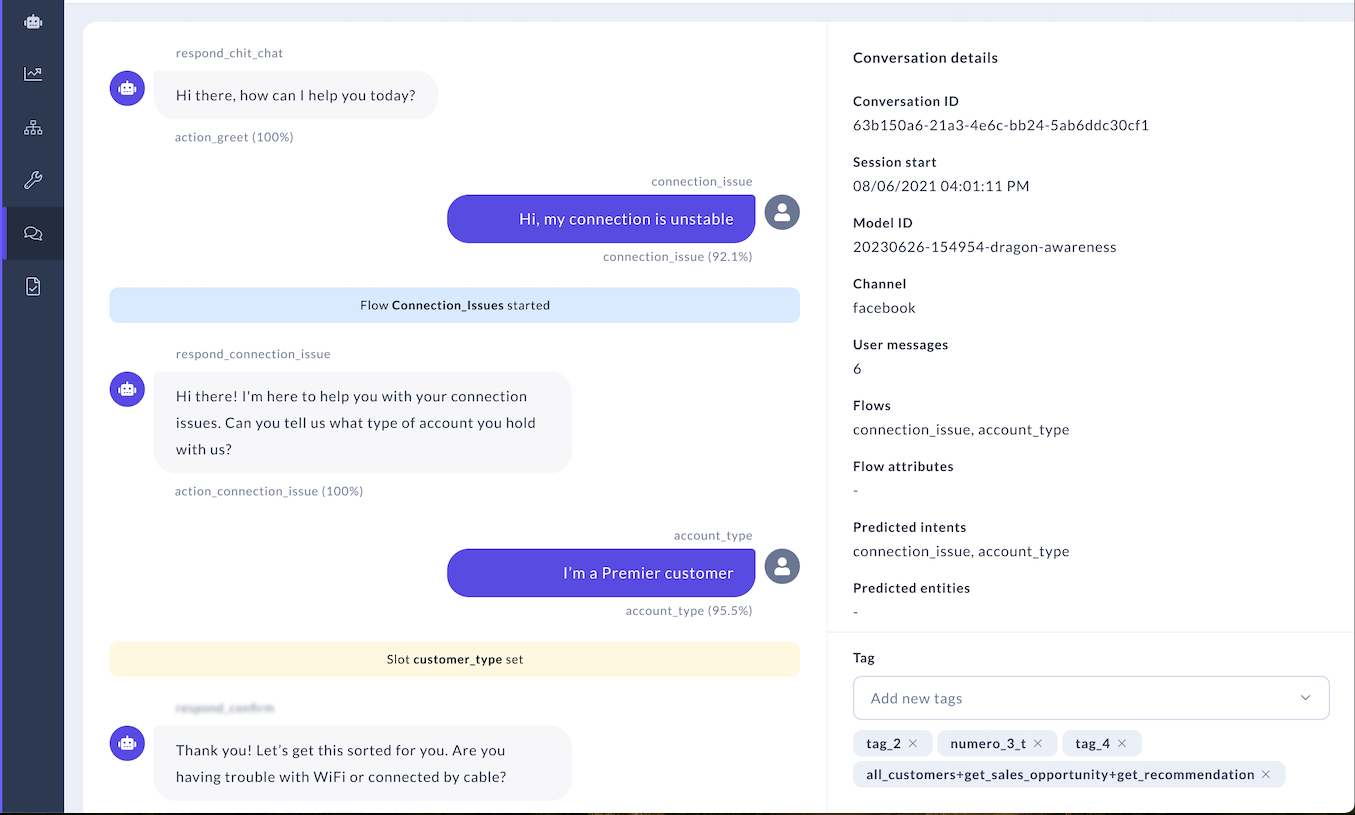
Managing Tags
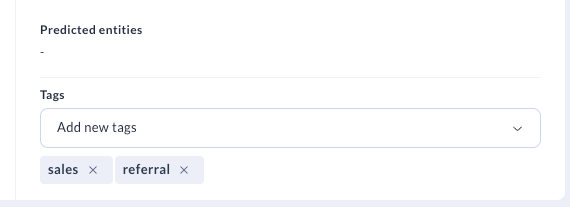
The Details section is also where you can manage tags for the conversation you’re reviewing. Scroll to the bottom of the details panel to add or remove tags associated with a conversation. Learn more about tags and how to use Tags.Conversation Stream
The Conversation Stream is a turn-by-turn breakdown of the conversation you selected for review. Clicking on messages, responses and certain event types will show you more information in the Details panel.User Messages
User messages are shown on the right-hand side of the stream. Clicking on a message will show more details about the message in the Details panel:- Message timestamp: The time at which the message was sent.
- Message ID: The unique ID of the user message.
- Message in conversation: The sequential number of the message in the conversation.
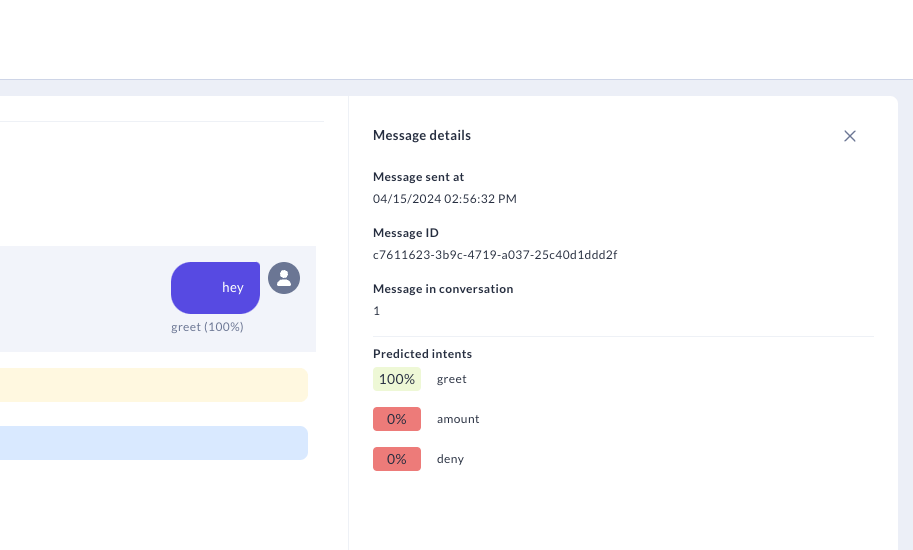
- Predicted intents with confidence scores
Bot Responses
Bot responses are shown on the left-hand side of the stream. All responses are displayed, including those generated by sub-agents. Clicking on a response shows its timestamp and response name in the Details panel.Events
Slot and Flow events are represented with a colored banner. Clicking on the banner reveals additional details about the events.Slot events
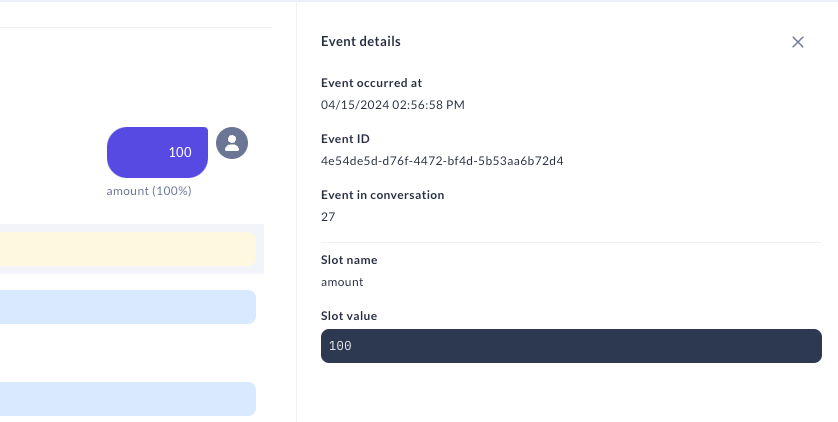
Slots are your bot’s memory. They store information a user has provided (for example, their name or phone number) or information the assistant can access about the user (for example, their account ID or device in use). The bot can then refer to this information throughout the conversation. When a slot is set during the course of a conversation, you will see a yellow banner. Clicking on the banner will show more details about the set slot in the Details panel:- Event timestamp: The time at which the Slot event took place.
- Event ID: The unique ID associated with the event.
- Event in Conversation: The sequence of the event in the conversation.
- Slot Name: The name of the slot that was set.
- Slot Value: The information about the user or conversation that is now stored in the slot.
Flow events (CALM assistants only)
CALM assistants are powered by Flows. Flows are abstract representations of the business processes your assistant completes. If you are analyzing a conversation with a CALM assistant, you will see the following Flow events:- Flow started: The assistant started a Flow in response to a user question.
- Flow interrupted: The Flow stopped before completion. It will continue once the interrupted flow is finished.
- Flow resumed: The Flow restarted after stopping. Flow restart at the point where it left off.
- Flow completed: The Flow was completed within the session window.
- Flow cancelled: The user cancelled the Flow during the conversation session.
- Timestamp of event: The time at which the Flow event took place.
- Event ID: The unique ID associated with the event.
- Event in Conversation: The sequence of the event in the conversation.
- Flow name: The name of the Flow.
- Flow event type: The type of Flow event triggered.
Conversation Tags
Tags are a way for your team to supercharge your review workflows. Imagine a scenario where you are analyzing a conversation between a user and a weather app assistant. During the conversation, the user requested information on the pollen index for their zip code. However, the assistant was designed to only answer questions directly related to weather events, and so the question triggered the assistant’s fallback behavior. With tags, you could:- Batch this conversation with similar ones by assigning a tag like
out-of-scopeto denote the user asked a question outside of the assistant’s domain - Batch this conversation with similar ones by assigning a tag like
topic-pollen-indexto denote the user asked a question related to the pollen index for their location - Specify what action the team should take next by assigning a tag like
needs-further-analysis,implement-behavior, or a even a knowledgeable teammate’s name.