

Step 1: Log In to Rasa Studio
- Log in to Rasa Studio as a user with the
superuserordeveloperrole.
For more details on roles and what they can do, check out our user role guide.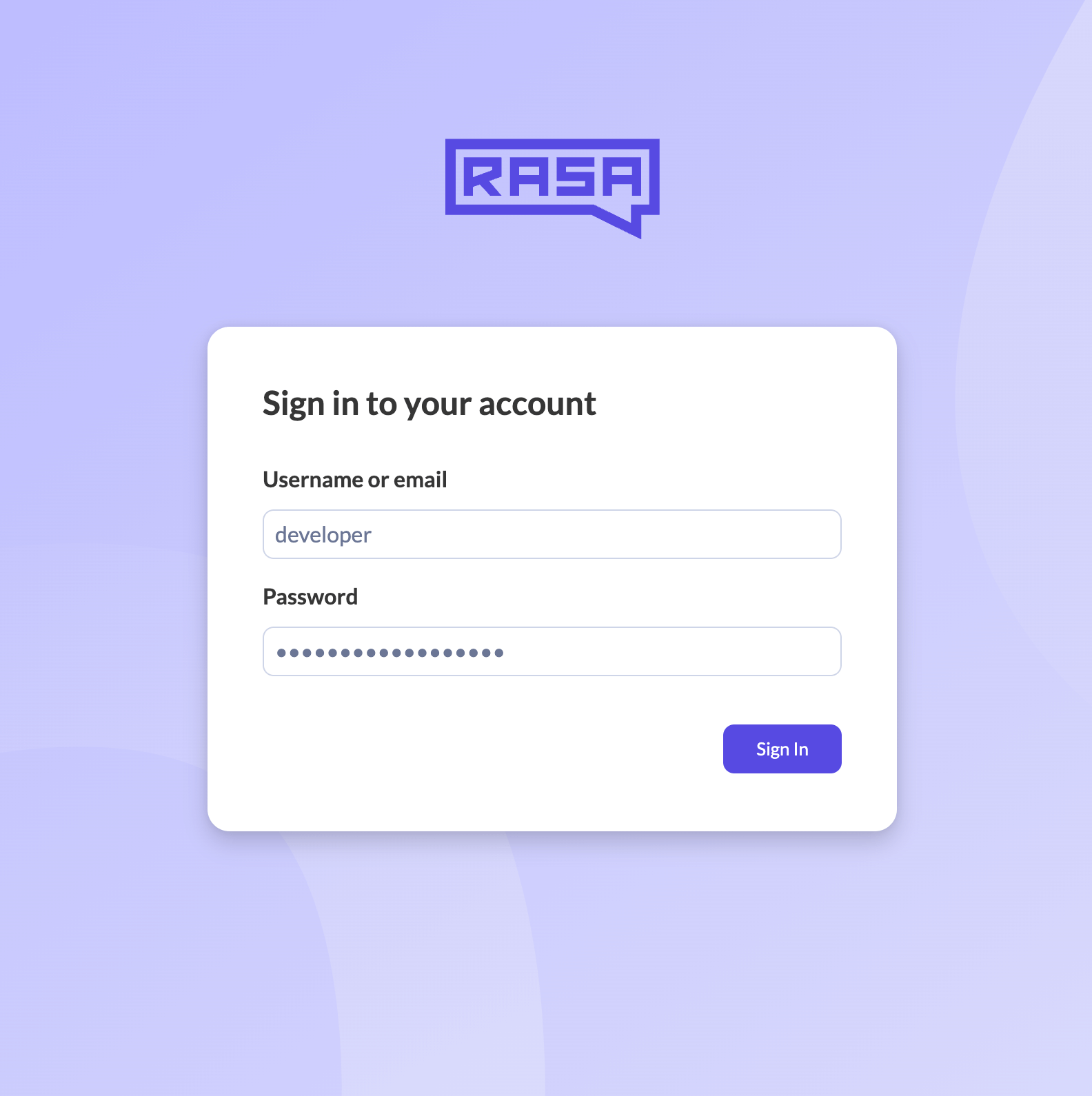
- Create or select an assistant you want to configure.
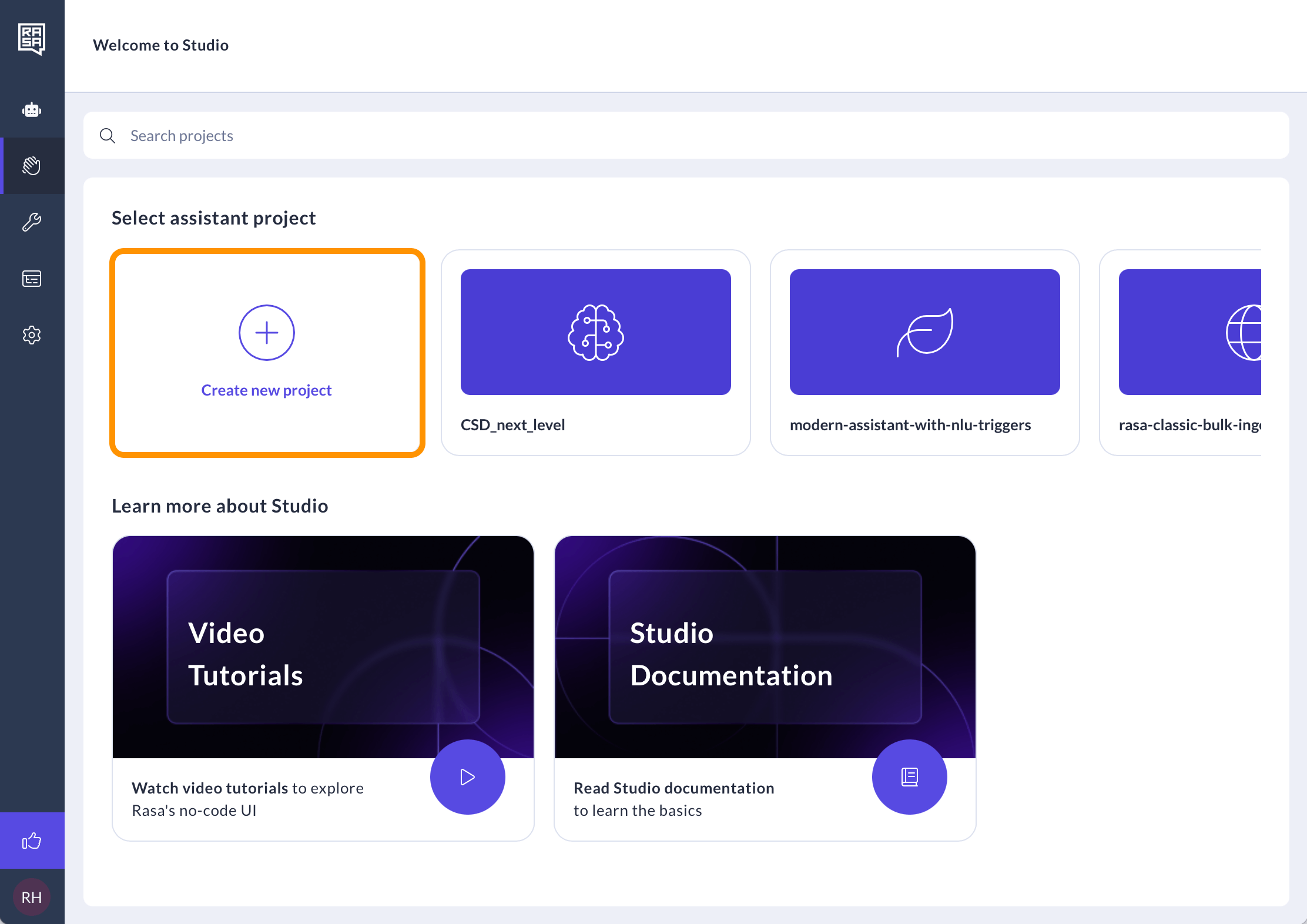
Step 2: Configure Your Assistant
- Navigate to the “Assistant settings” page.
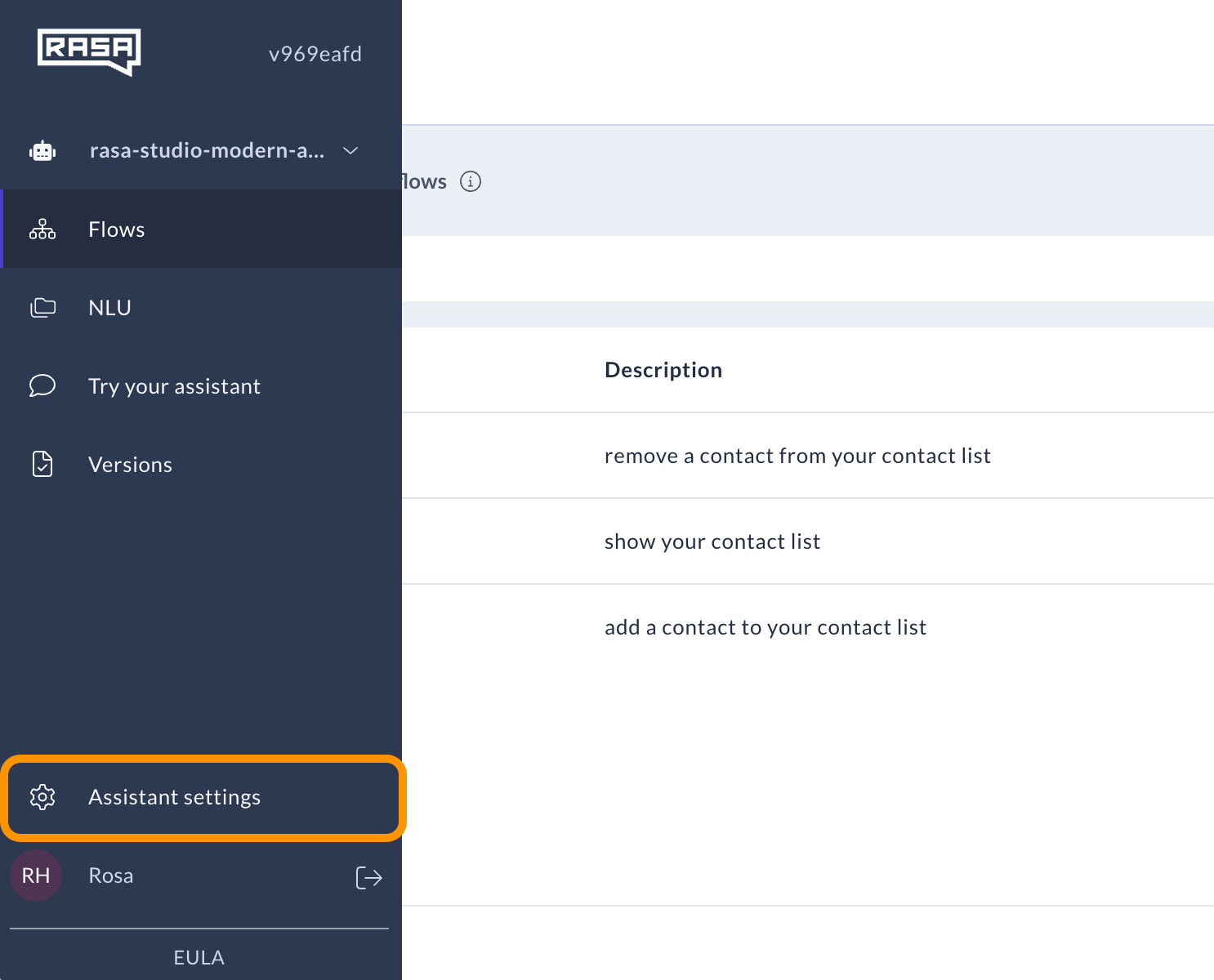
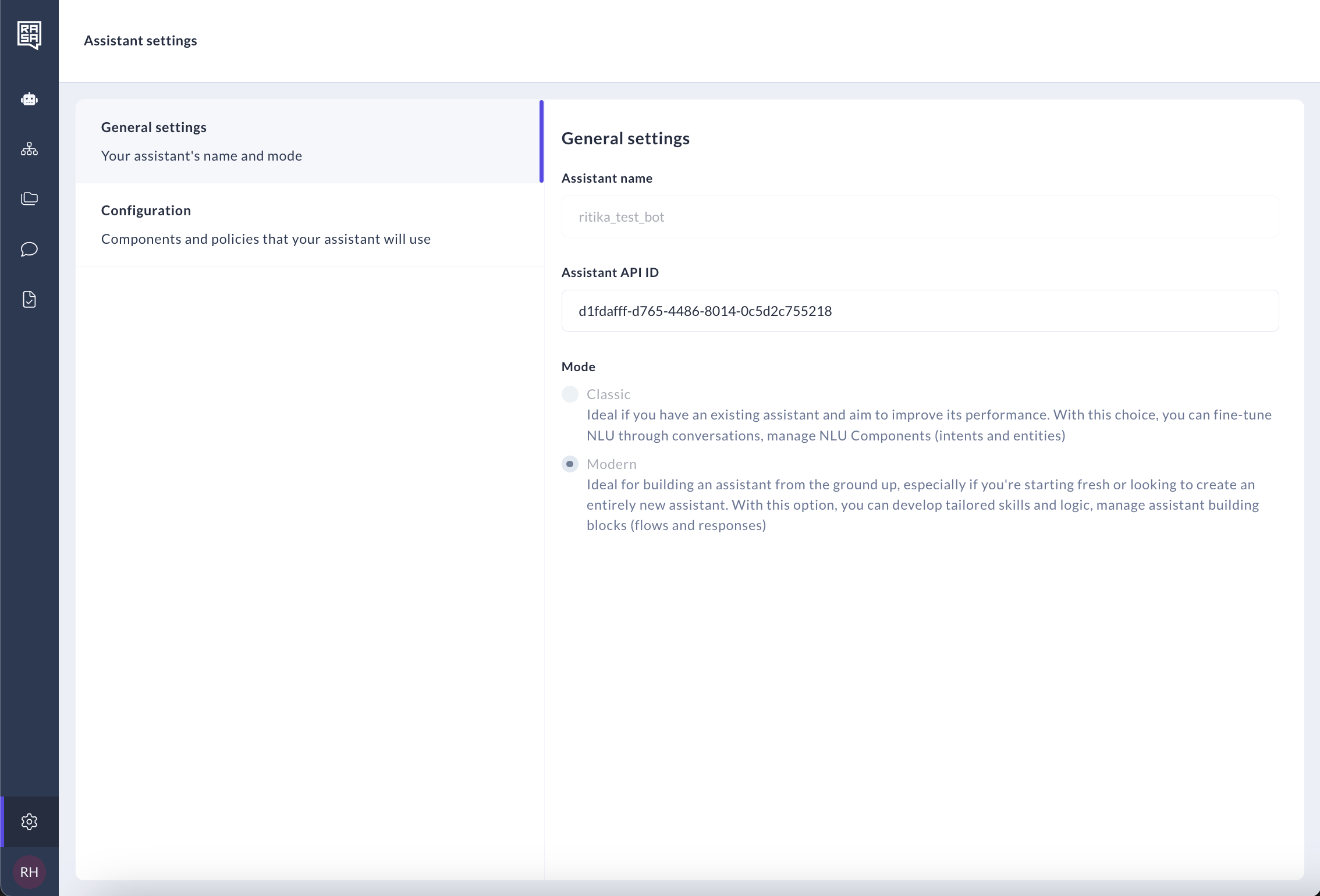
- Click on the “General settings” tab. Here, you will find general information for your assistant like Assistant name and Assistant API ID. These settings aren’t editable.
- Click on the “Configuration” tab. Here, you will find editors for the default
config.ymlandendpoints.ymlfiles.”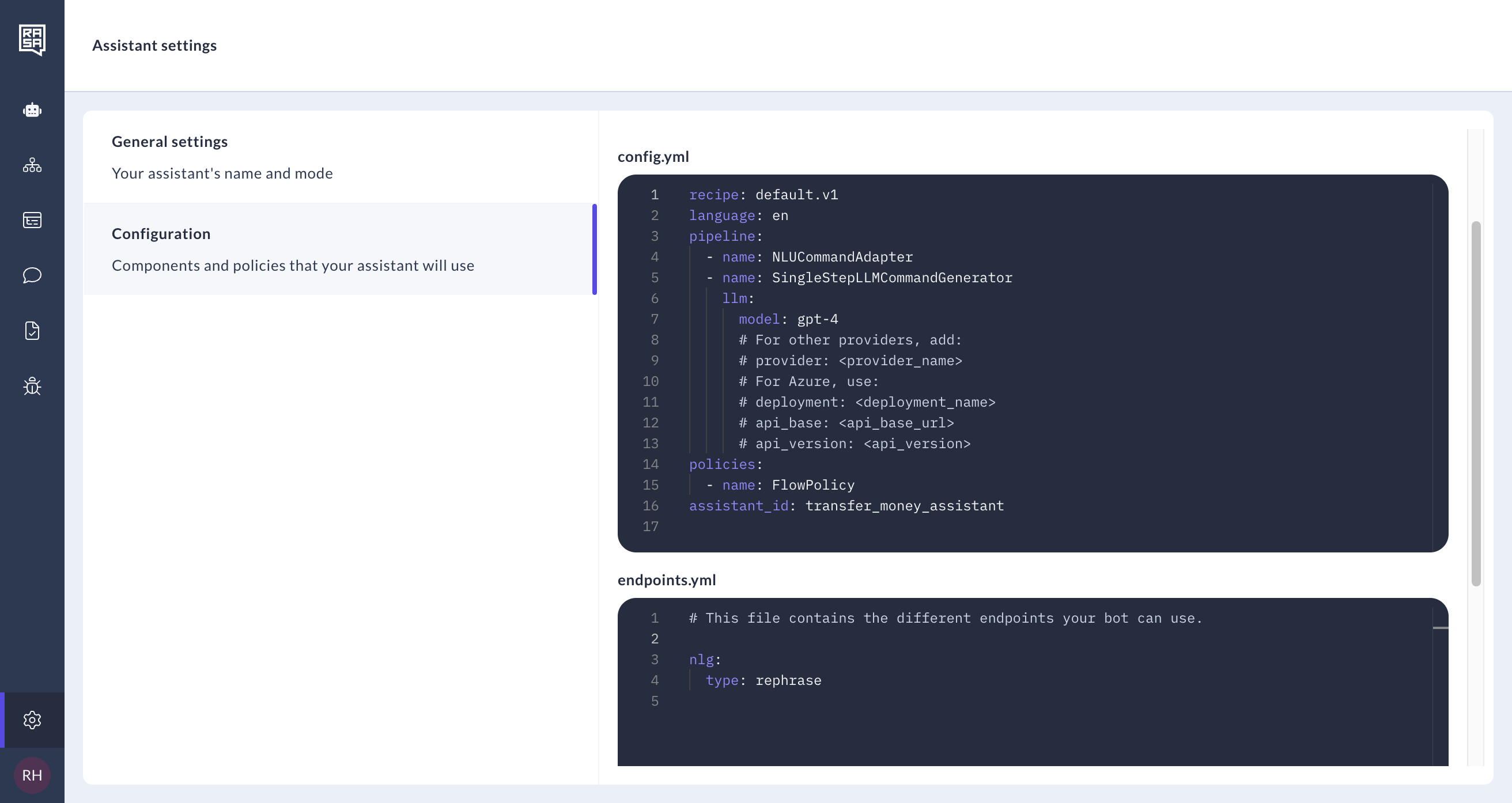
Configuration Files
You can configure LLMs and their deployments, embeddings, NLU, Core, and Action server in these files.Config
Theconfig.yml file is central to configuring your assistant’s behavior. It allows you to customize:
- NLU (Natural Language Understanding) components
- Core model settings
- Training pipeline
- Policies
- LLM (Large Language Model) configurations and deployments
- Embedding settings
Endpoints
Theendpoints.yml file specifies various service endpoints used by Rasa Studio, including:
Optional: Configure Additional Languages
Configuring additional languages enables your assistant to deliver localized content and offer a better experience for users who speak different languages. It also allows you to manage and translate responses directly in Studio.- Navigate to the Assistant Languages tab
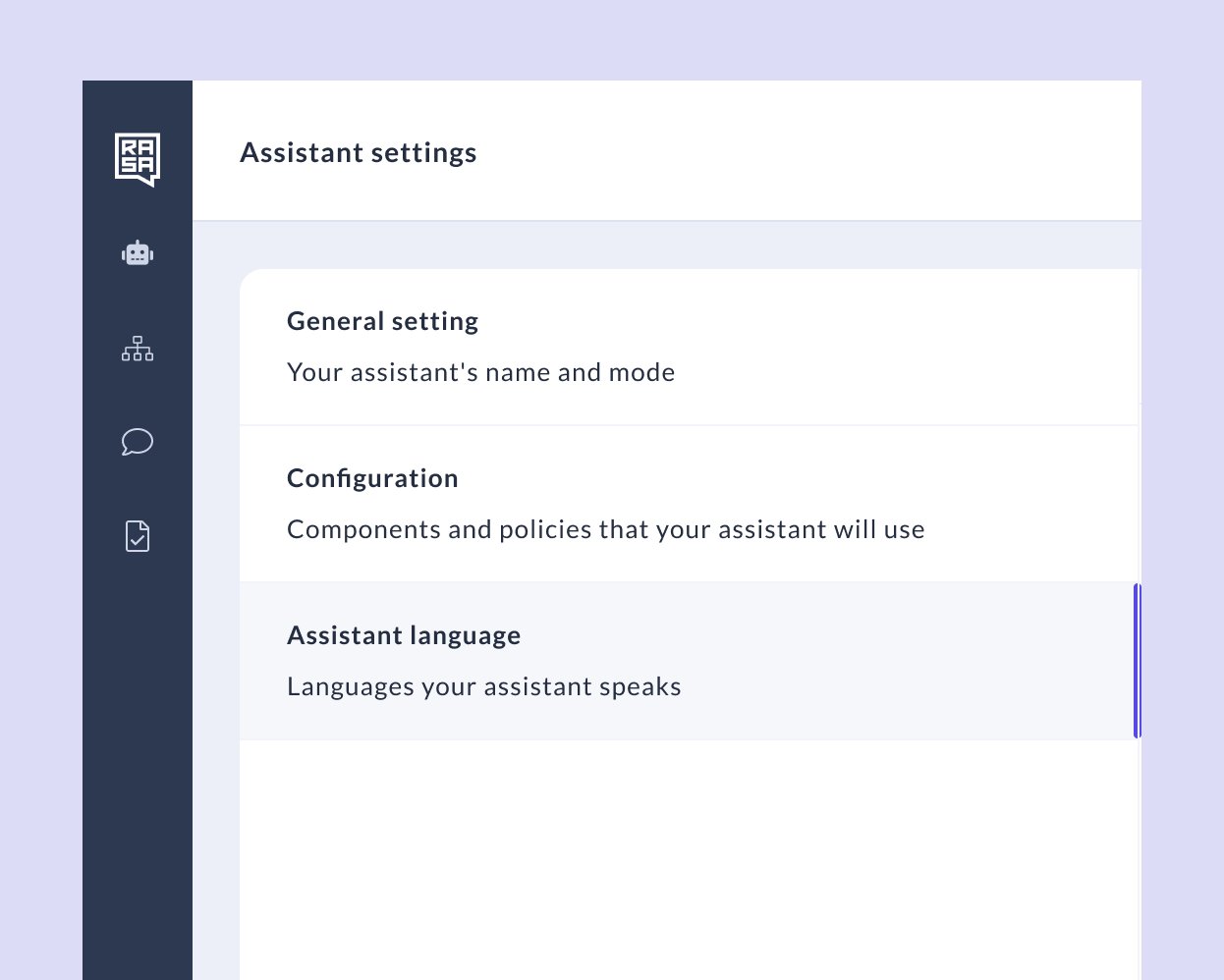
- From the sidebar menu, select “Assistant language.”
- This opens the panel where you can set your assistant’s default and additional languages.
- Set the Default Language
- You can update your default language from this tab. This language is the primary language your assistant uses and will act as the fallback if translations are missing or errors occur.
- Add Additional Languages
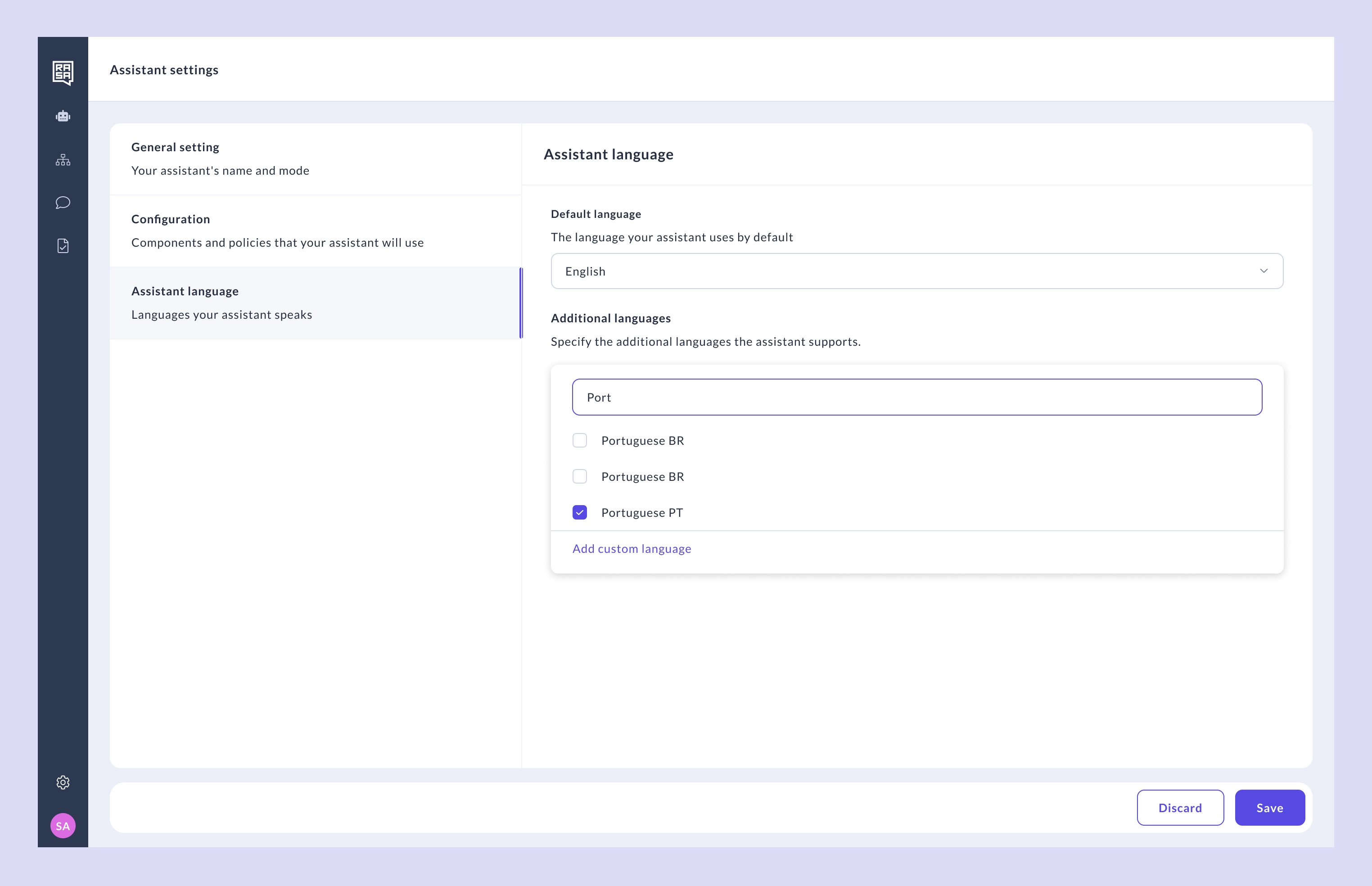
- Select the additional languages you want your assistant to support (e.g., start typing “Port” to filter Portuguese variants).
- Select the appropriate one(s).
- Save your changes.
Changes to language settings automatically update your config—no manual changes are needed.
- (Optional) Add a Custom Language
- If your target language isn’t listed, click “Add custom language” at the bottom of the list.
- This allows you to manually define a language key and name.
About Language Codes
Rasa uses the BCP 47 standard for encoding languages. This standard supports a wide range of use cases across global markets. You can find specific language codes in the IANA Language Subtag Registry.📌 Advanced Tips:
- Custom dialects: Use
x-<language-code>for private use (e.g.,x-de-formalfor formal language variants). - Regional variants: We recommend to keep your language codes simple - however, if you have country level localization - use region-prefixed codes like
en-US🇺🇸 oren-UK🇬🇧 to support localized behavior.
Further Reading
For more detailed technical information onconfig.yml and endpoints.yml files, refer to the Rasa documentation on model configuration.