Analytics
Rasa Studio ships a built-in Analytics dashboard which gives you a clear view of how your assistant performs over time. It helps you answer questions like:
- Are users getting the help they need?
- Is the assistant faster or slower after a release?
- Which flows are working well, and which may need improvement?
This page explains what you’ll see on Analytics, how to interpret the numbers, and how to use filters and insights to take action.
Metrics at a glance
Conversation Volume: The total number of conversation sessions between your assistant and users within the selected time period.
Each session is evaluated against your success criteria. These are the conditions you define to determine whether a conversation was successful. For example, you might count a session as successful if the user completes a booking flow without being handed off to a live agent.
You can configure these criteria in Settings > Success Criteria so they reflect what success means for your use case.
By default, any session that is resolved without reaching a human agent is counted as successful.
You can update these criteria at any time as your assistant evolves. Changes only apply to new sessions going forward and do not retroactively affect historical data.
Containment: A contained conversation is one where the user's request was handled end-to-end by the assistant, no escalation to a human.
To measure containment, your assistant must have action_human_handoff configured. This is the action Rasa uses to detect when a conversation is escalated to a human agent. Without it, the system has no way to distinguish contained conversations from escalated ones, and your containment metrics will not be accurate.
Latency: The average time it takes for your assistant to respond to a user message. This is calculated from the moment the user's message is received to when the assistant's reply is sent back.
CSAT Customer Satisfaction (CSAT): The percentage of conversations where users provided positive satisfaction feedback. CSAT collection is handled automatically: pattern_customer_satisfaction triggers after pattern_completed once the user indicates they are done, prompting them to rate their experience. Responses are broken down into three categories: Satisfied (user gave a positive rating), Dissatisfied (user gave a negative rating), and No Response (no feedback was provided)
If a CSAT scale from 1 to 5 is used, ratings are grouped as follows:
- Satisfied: ratings 3–5
- Dissatisfied: ratings 1–2
Conversations where no rating is submitted are categorized as No response.
Analytics Overview
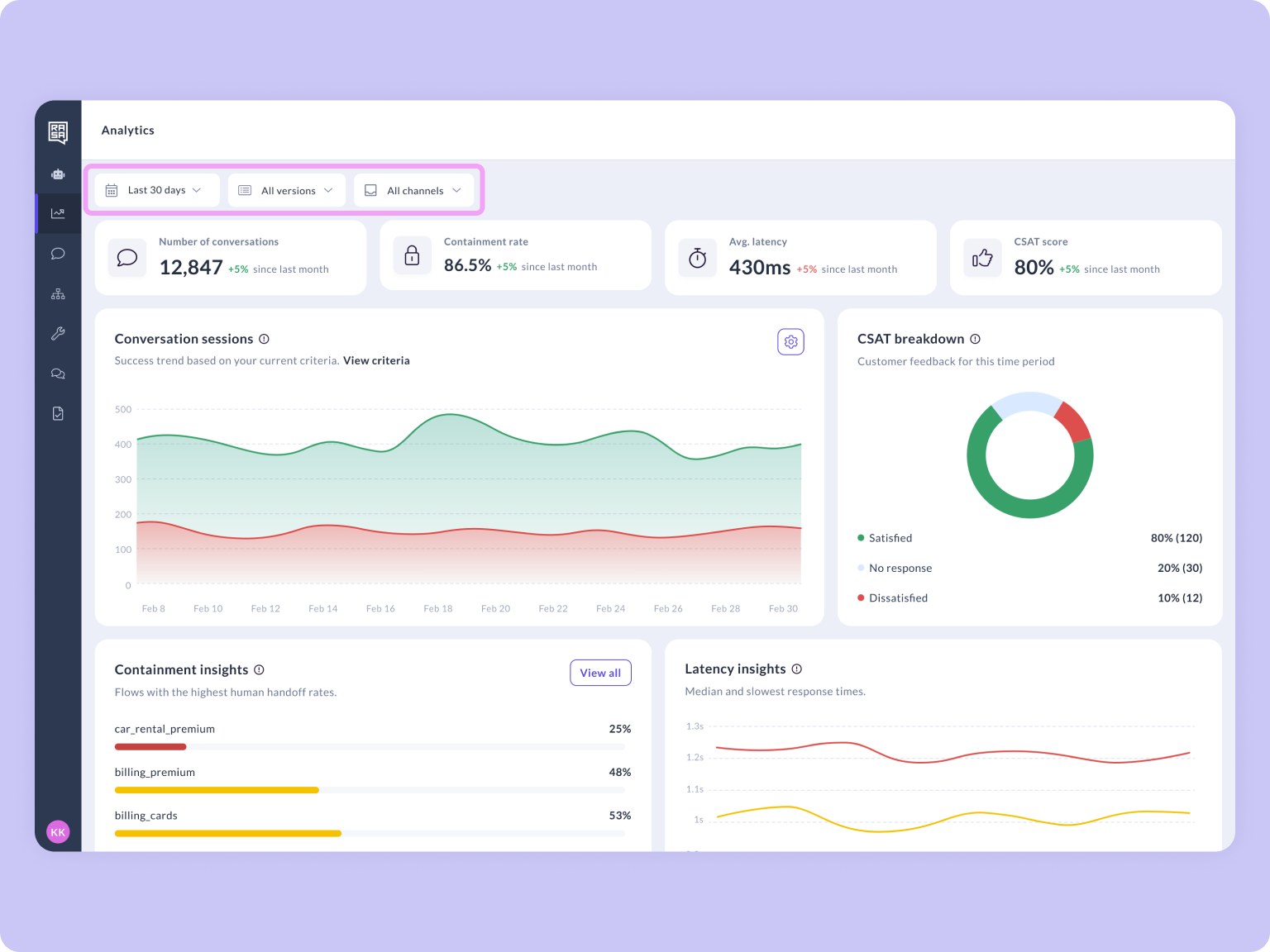
The Analytics dashboard gives you a single view of your assistant's health across four key metrics: conversation volume, containment, latency, and CSAT. Each metric is visible at a glance at the top of the dashboard, with charts and insights below that help you dig deeper. Use the dashboard to spot trends over time, compare performance across versions, and identify which flows need attention, all without leaving Rasa Studio.
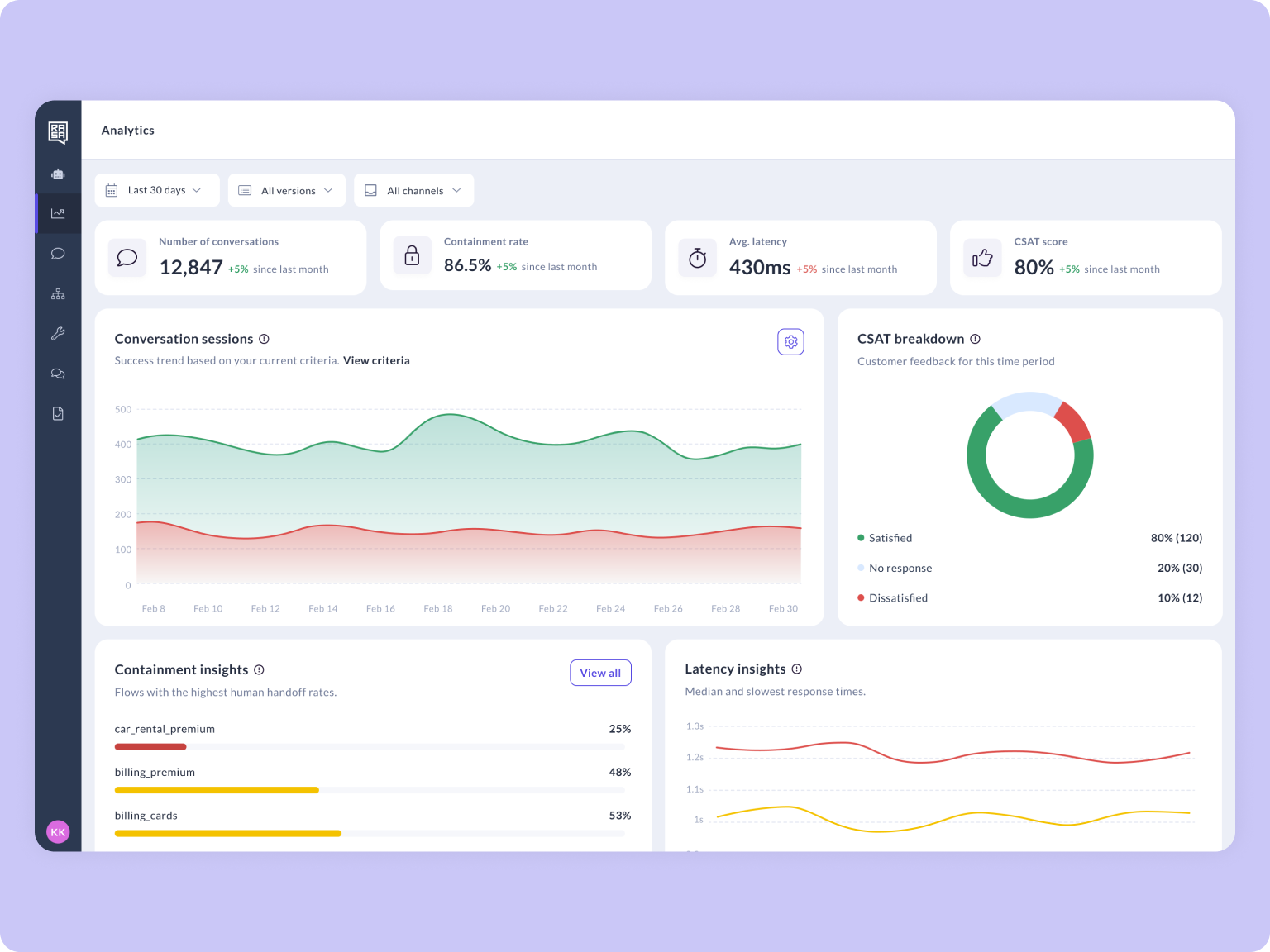
Conversation Volume
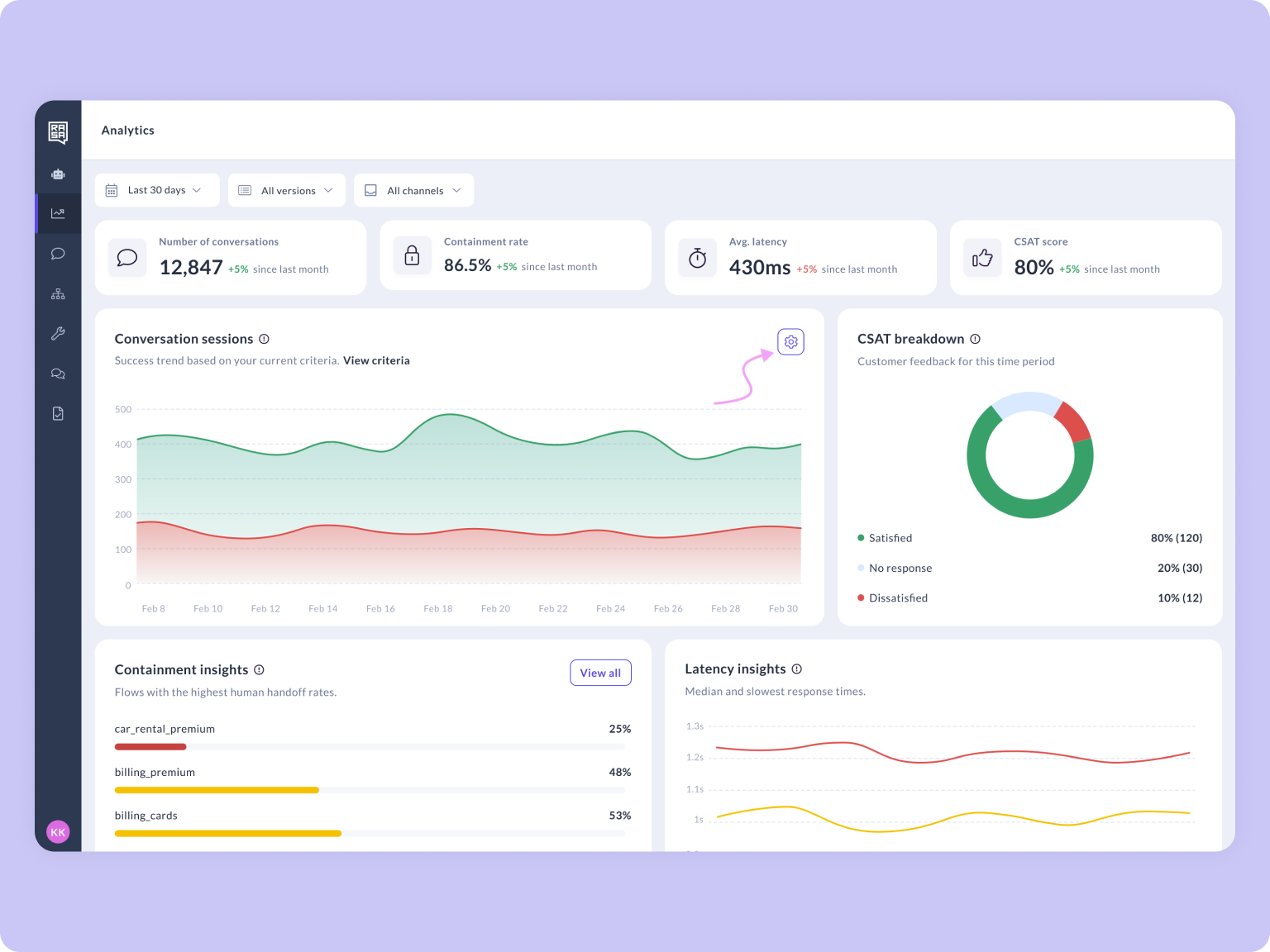
The conversation volume chart displays all conversations within your selected time period, divided into successful and unsuccessful conversations giving you an immediate sense of how well your assistant is handling user requests at scale.
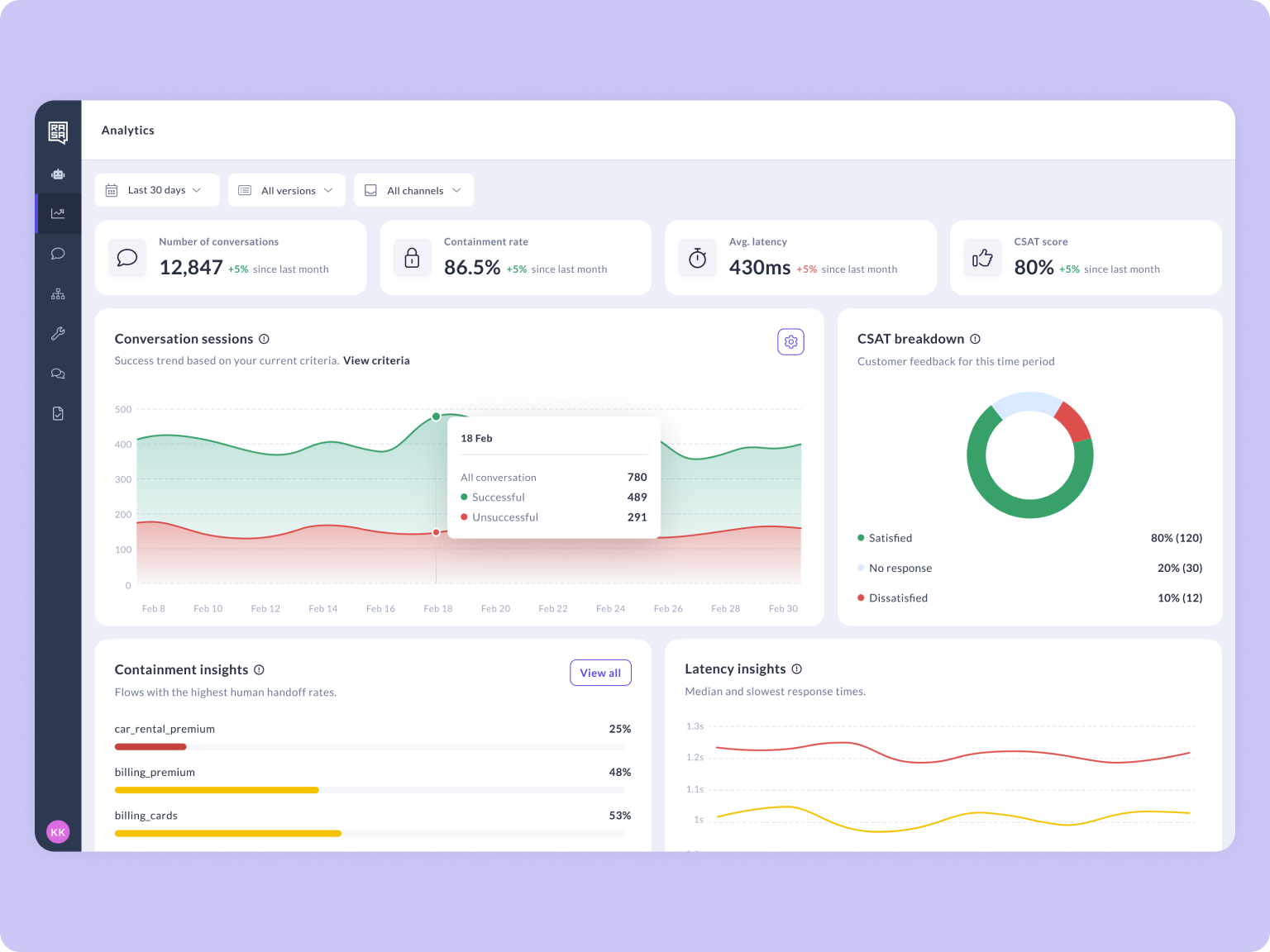
What counts as a "successful" or "unsuccessful" conversation? That's up to you. Use the configuration panel to define your own success criteria so the chart reflects what matters most to your team.
Viewing Conversations from the Chart
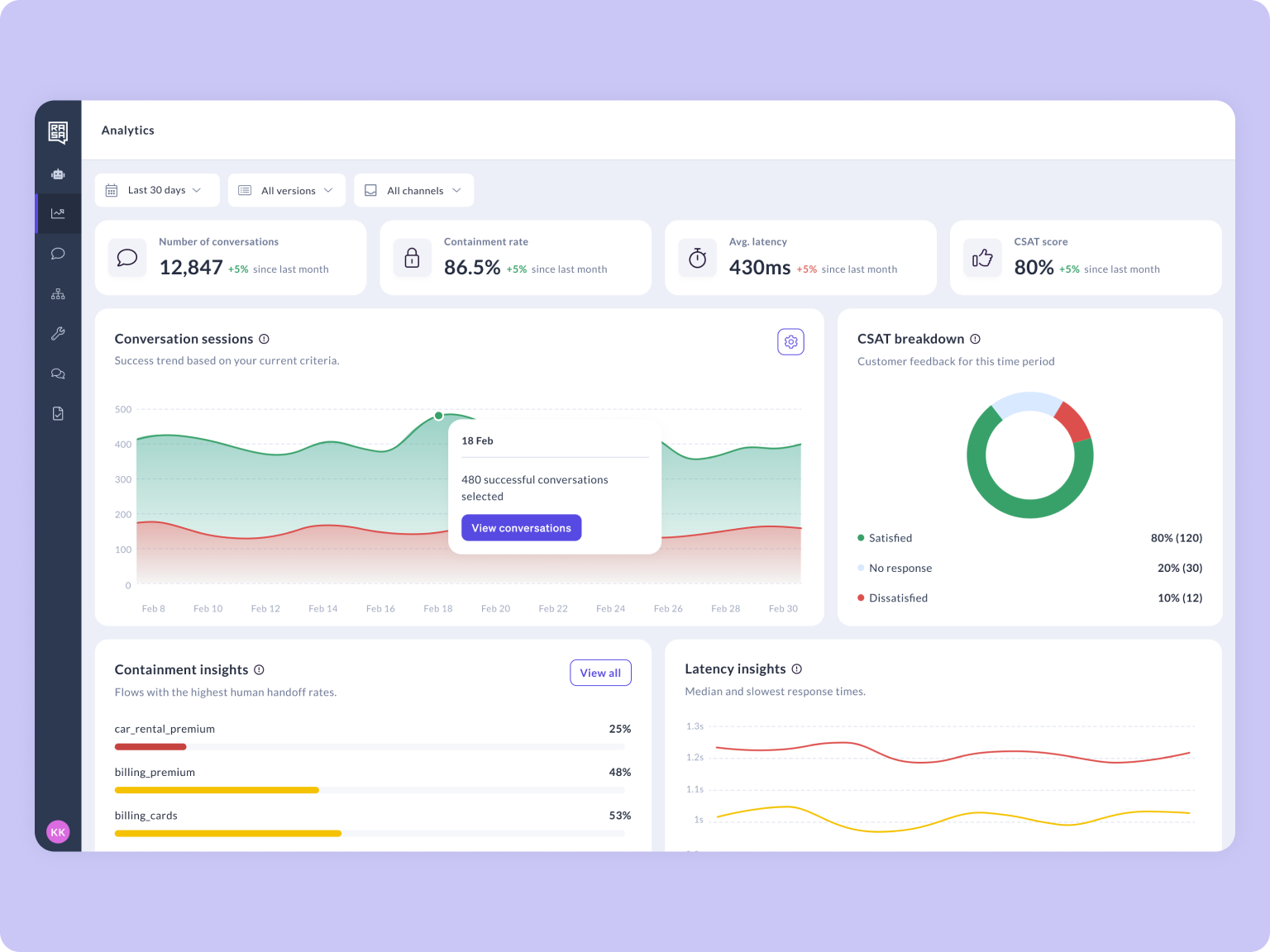
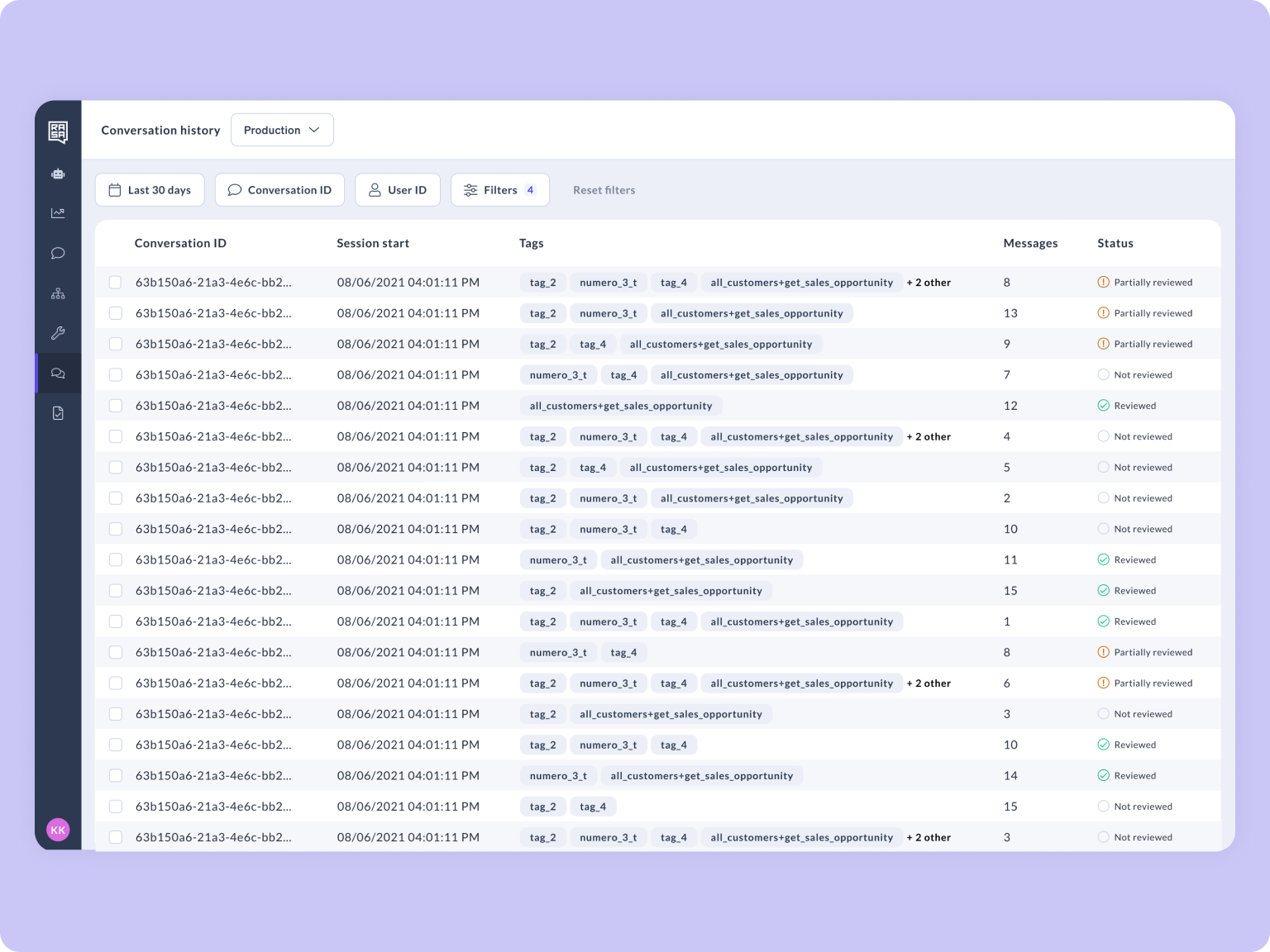
You can go directly from the Conversation Volume chart to the individual conversations behind the data. Click on any bar in the chart to open a filtered view of the conversations that make up that data point.
This lets you:
- Review successful conversations to understand what's working well.
- Investigate unsuccessful conversations to identify where users are dropping off or getting stuck.
- Spot patterns across conversations for a specific day or time period without manually setting up filters.
The conversation list will reflect the same success criteria you've configured, so successful and unsuccessful conversations are already categorized for you. From there, you can open any conversation to see the full session transcript and understand exactly what happened.
How to Define Success:
The Conversation Volume chart displays all conversations within your selected time period, split into successful and unsuccessful. This gives you an immediate sense of how well your assistant is handling user requests at scale.
To configure what counts as a successful conversation:
Open the configuration panel: Click the ⚙️ settings icon on the Conversation Volume chart.
Add filters to define success: Use the available filters to specify what success looks like for your team. For example, you might define success as conversations where a specific flow was completed, or where no handoff occurred.
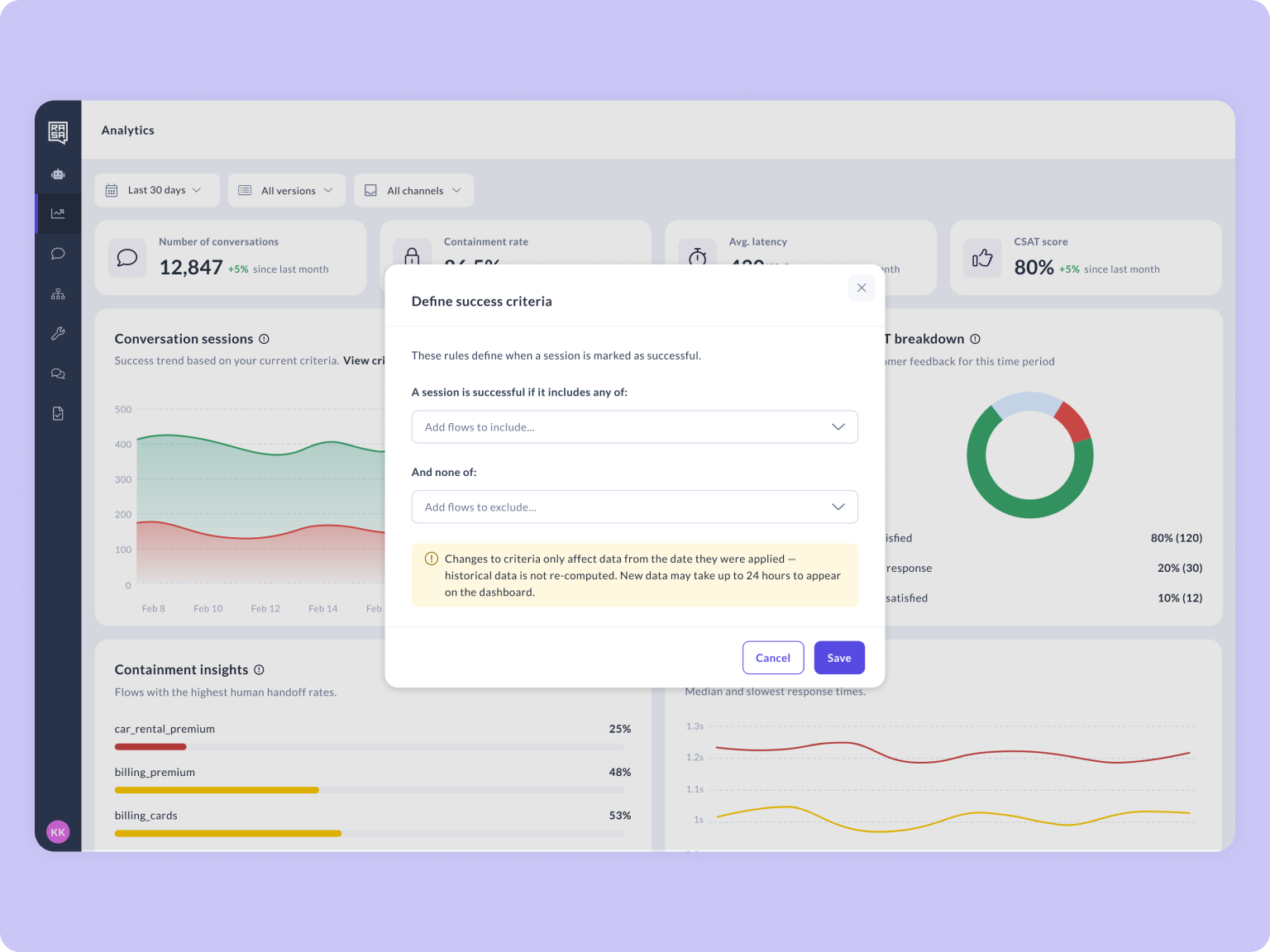
Everything else is unsuccessful: Any conversation that doesn't meet your criteria is automatically categorised as unsuccessful. The chart updates immediately to reflect your definition.
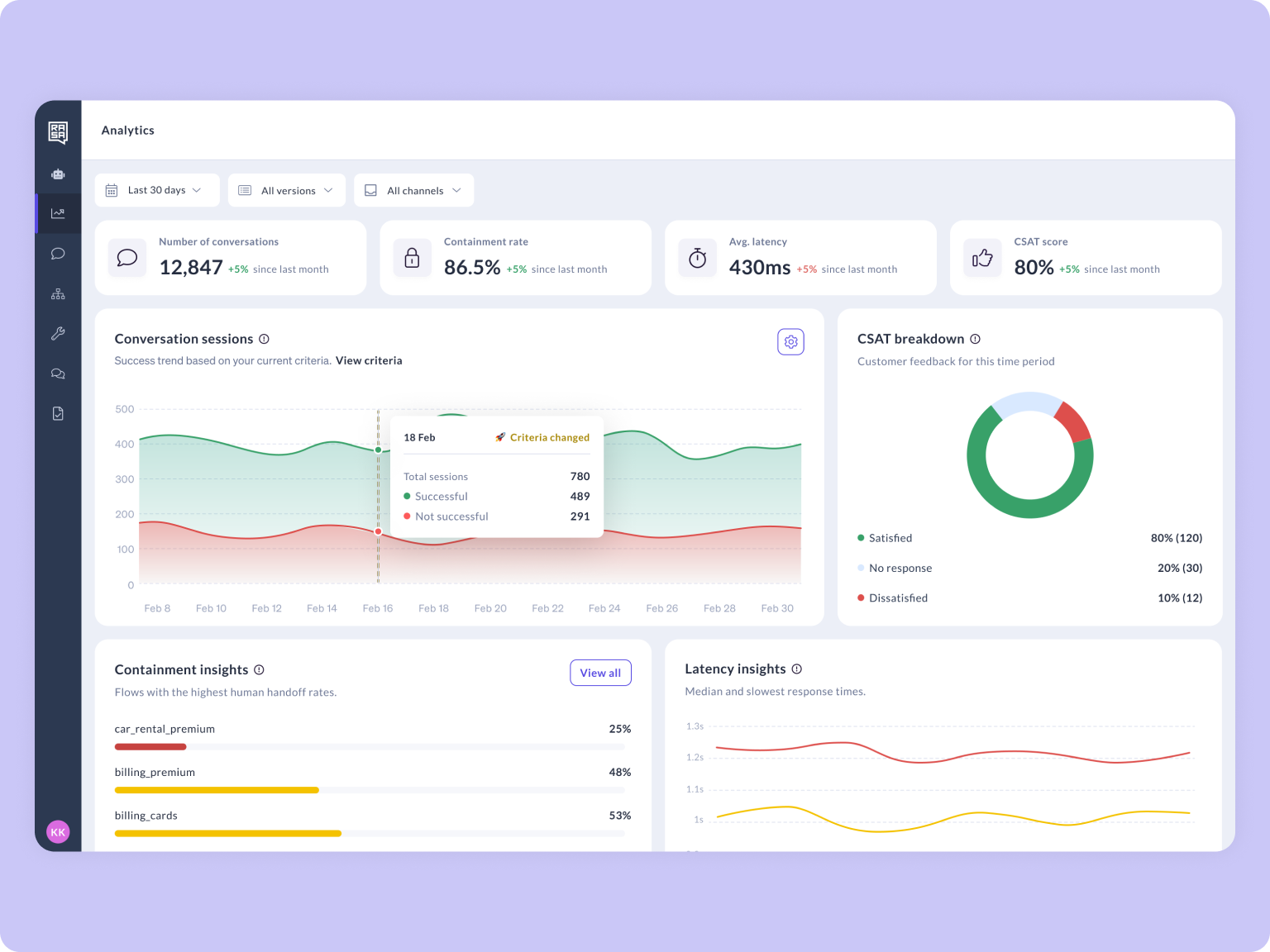
Success criteria are recalculated as part of a nightly batch job, so changes you make today will be reflected in your metrics the following day. If you update your criteria multiple times in a single day, only the last change is applied.
When your success definition changes, a vertical line appears on the chart to mark the date. This helps you distinguish genuine performance shifts from changes caused by an updated definition.
Containment Insights
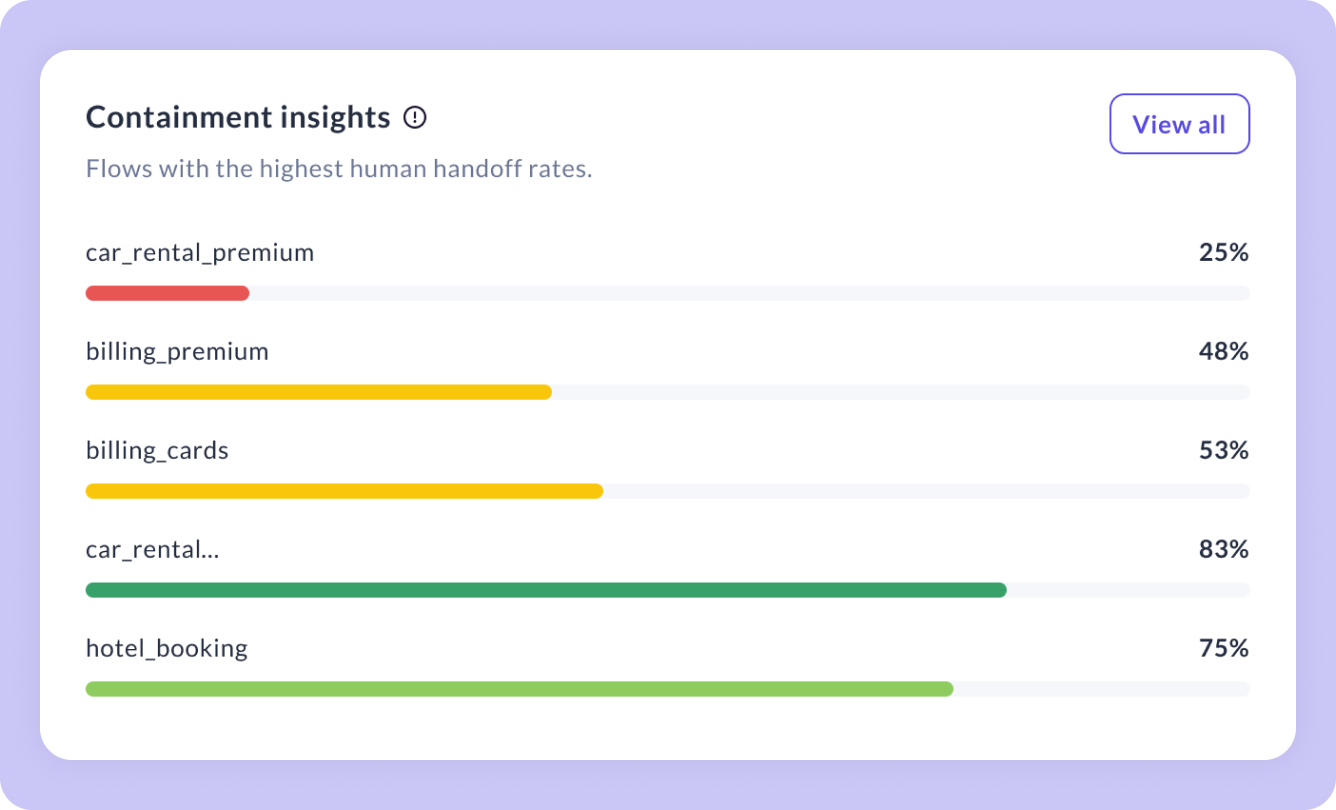
Containment Insights surfaces a ranked list of the flows with the lowest containment rates. The ones most often resulting in a handoff to a human agent. Instead of guessing where your assistant struggles, you get a clear priority list of what to fix first. Each row represents a flow in your assistant. Low containment rates signal flows that may need better design, or additional knowledge.
Latency Insights
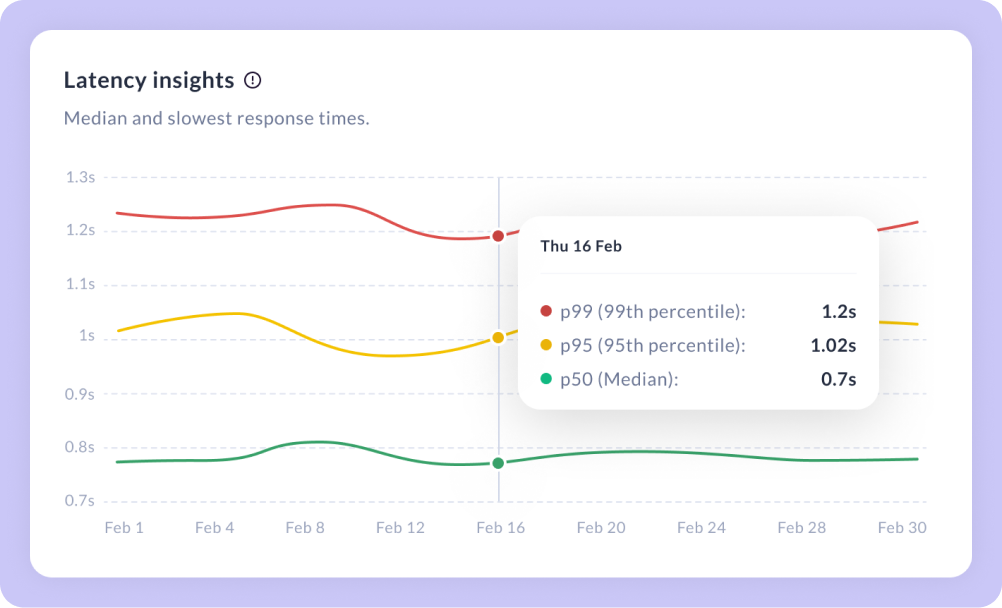
Latency Insights breaks down your assistant's response times across the selected period into three percentile trend lines, giving you a nuanced view of performance beyond a single average. Use this view to detect latency degradation before it impacts user experience. Comparing p50, p95, and p99 helps you distinguish between a general slowdown affecting everyone versus tail latency issues impacting a subset of conversations.
Filters
Applying filters to the Analytics dashboard helps you compare how different assistant versions perform, isolate channel-specific issues, or zoom into a specific week to investigate a spike.
| Filter Name | Filter Description |
|---|---|
| Time period | Select the time window for your analytics data. Choose from preset ranges or define a custom period to focus on the timeframe that matters. |
| Assistant Version | Filter by the version of your assistant. Compare performance across deployments to measure the impact of changes between releases. |
| Channel | Filter by the channel where the conversation happened. Isolate metrics for chat or IVR. |
Direct Data Access
You can access the Analytics database and pipe it into your own dashboards. Or connect directly to keep all your reporting in one place. Please refer to our Studio Analytics Database Documentation.