What Are Prompts?
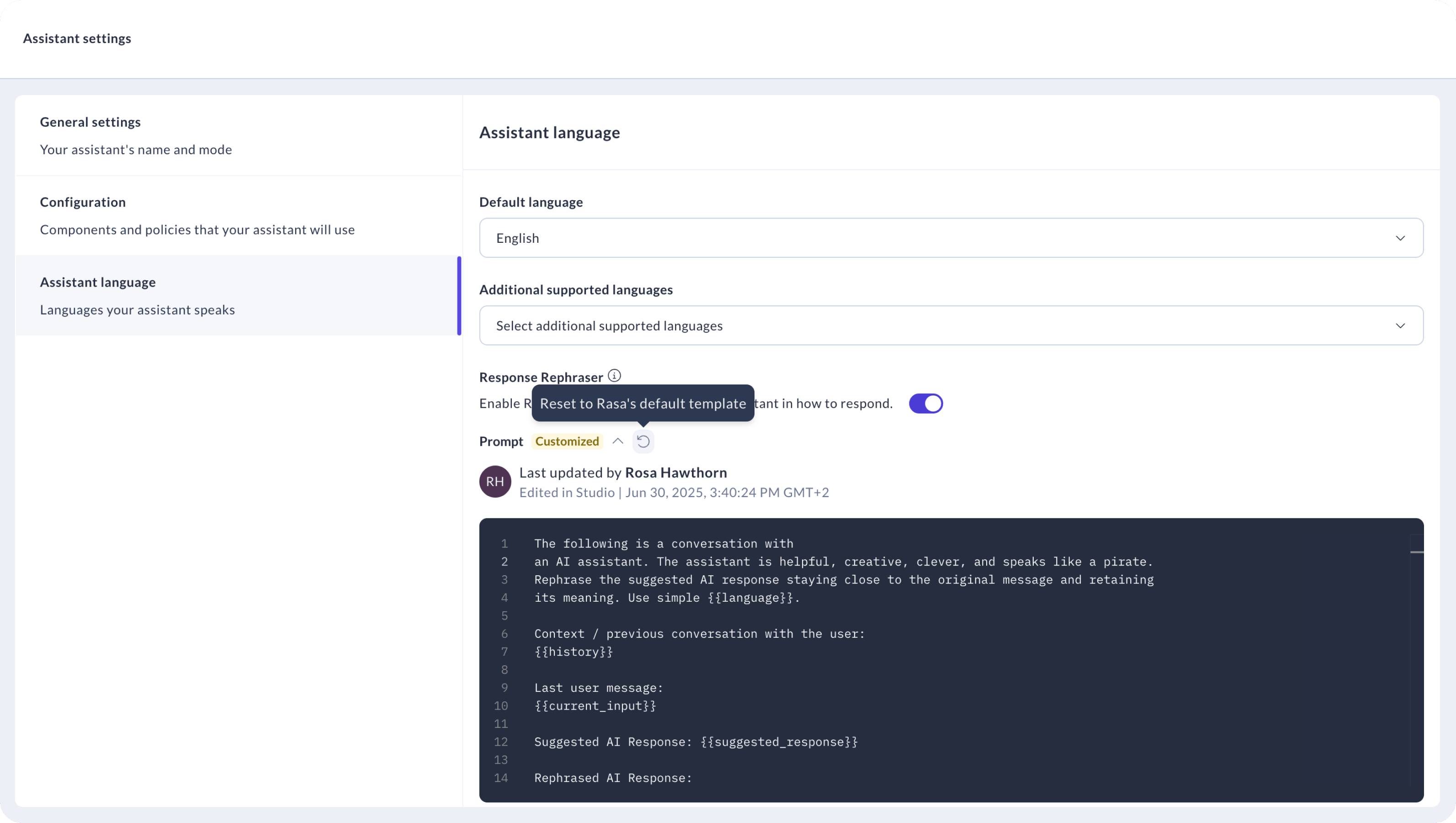
Prompts are short pieces of text that guide your assistant for specific tasks. Currently in Rasa there are three different types of prompts:- Rephraser Prompts: Control tone and phrasing for assistant’s using LLM-Rephraser. For the full reference Read the Reference.
- Enterprise Search Prompt: Specify how your assistant retrieves and presents information from knowledge sources. For the full reference read here.
- Command Generator Prompt (Advanced): Guide how your assistant translates user input and context into actions. For more guidance on when to customize read here. For the full reference read here.
Who Can Edit Prompts?
Users with the Content Editor role can edit prompts for individual messages. For editing global prompts you need the Developer role assigned. For more details on roles and how to set them up see the docs here.How to Edit Prompts in Studio
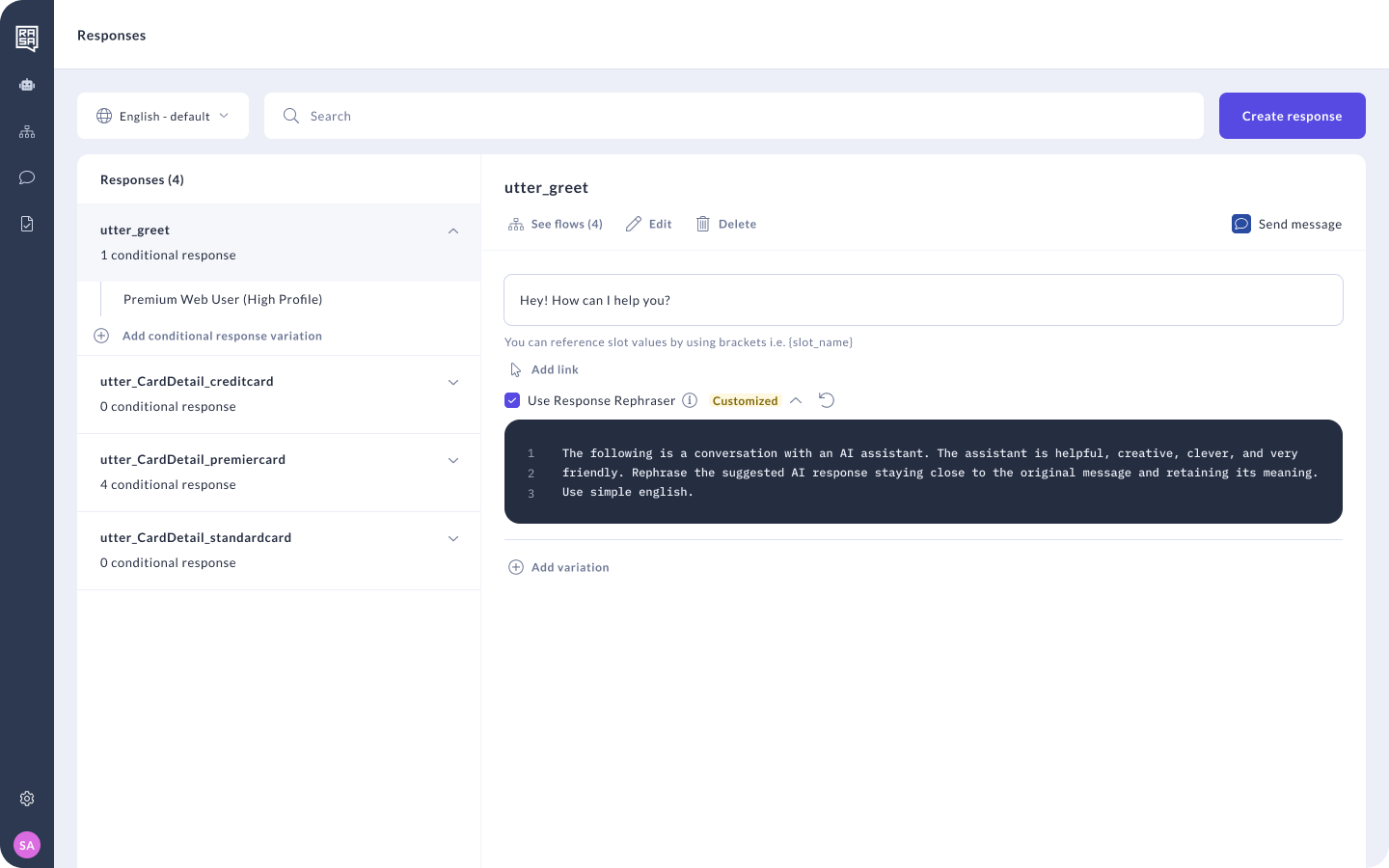
Editing a Prompt for a Specific Response
- Go to any message in the CMS.
- Make sure that Rephraser is enabled for that message.
- Update the text in the prompt editor.
Editing Global Prompts
- Open your assistant’s Settings.
-
For Command Generator or Enterprise Search go to the Configuration tab.
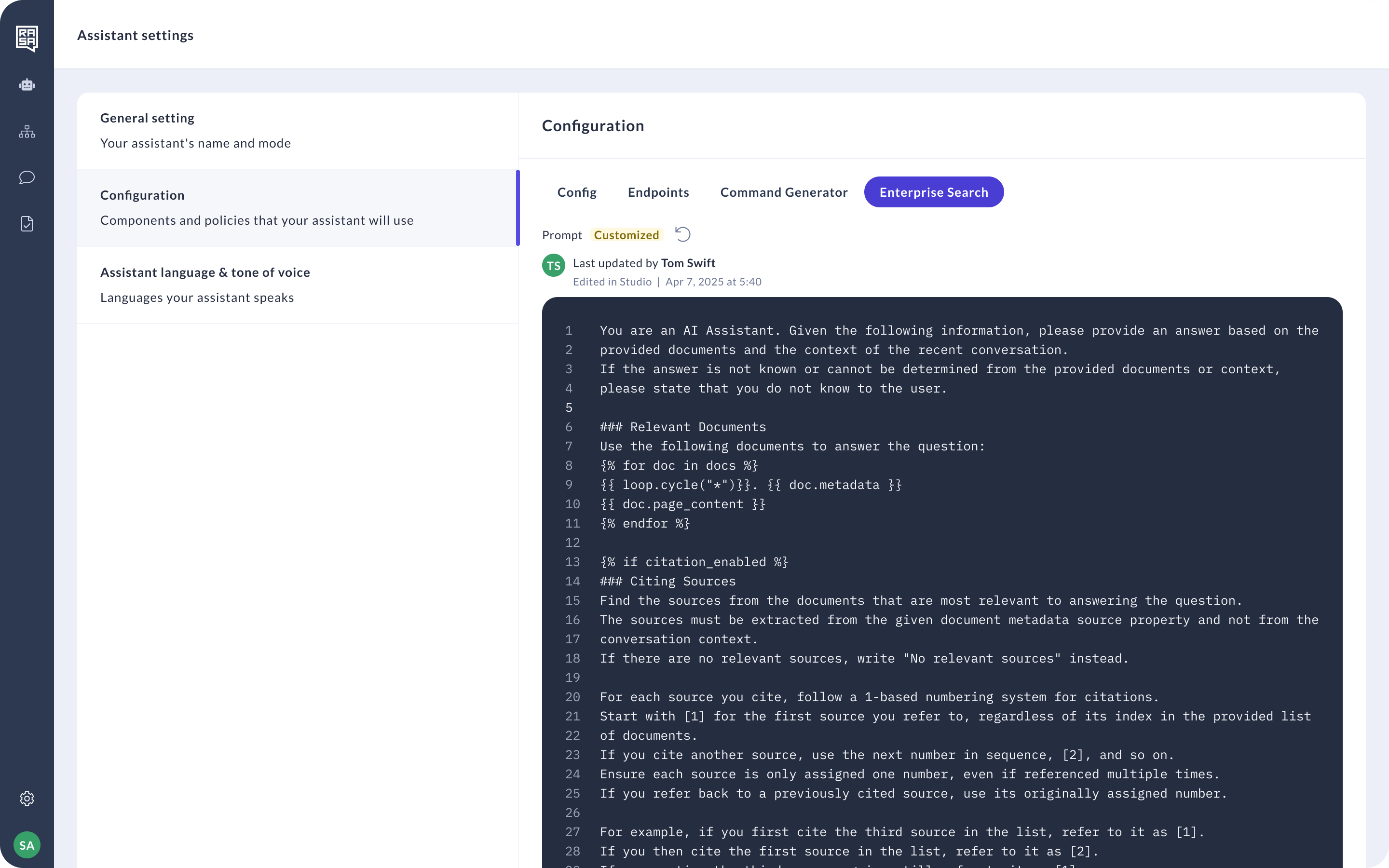
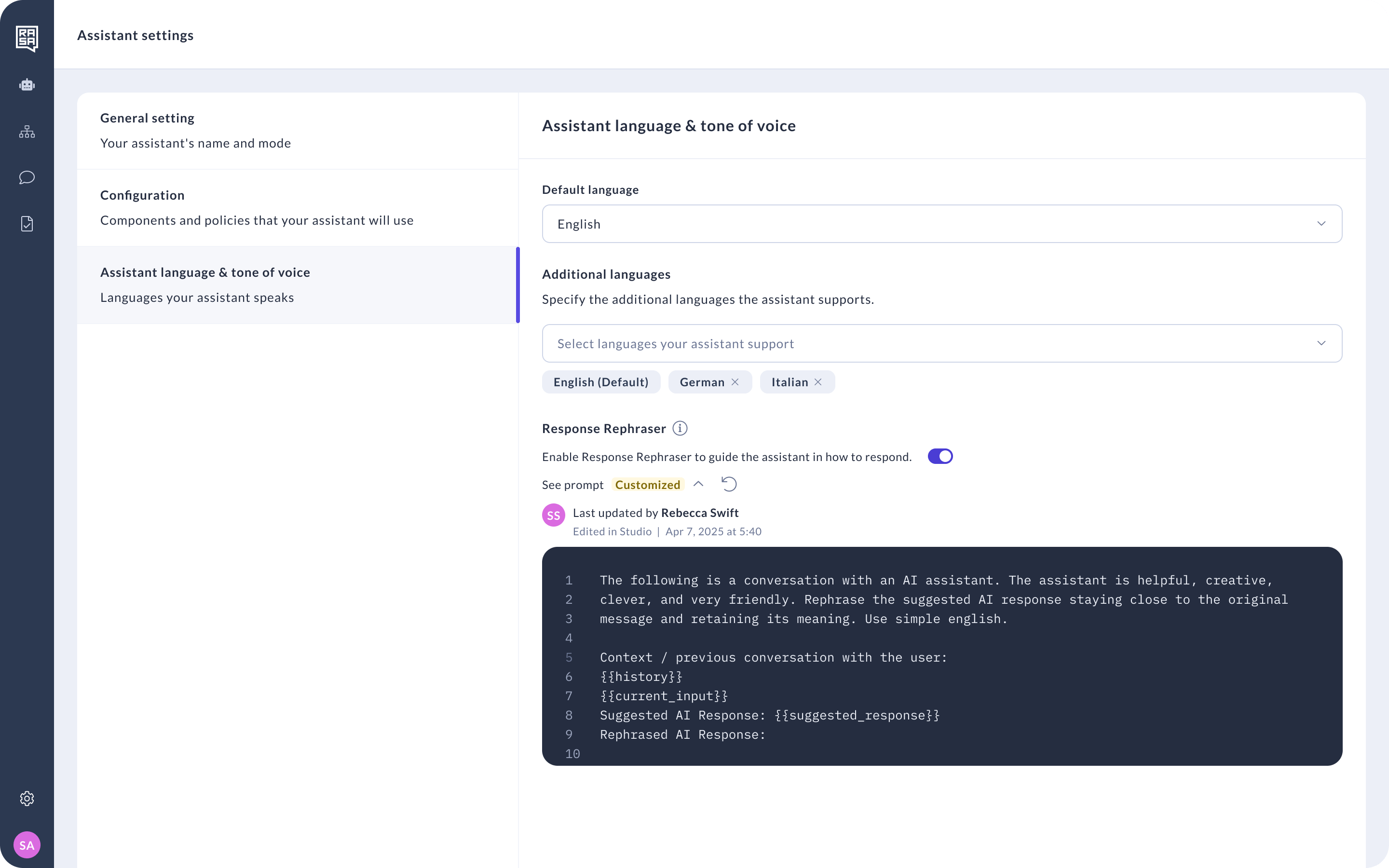
- Expand the prompt.
- Make your changes and click Save.
Resetting a Prompt to Default
To undo your changes:- Go to the customized prompt.
- Click the Reset to Default icon.
- Confirm that you want to remove the customization.